الأربعاء، 12 سبتمبر 2018

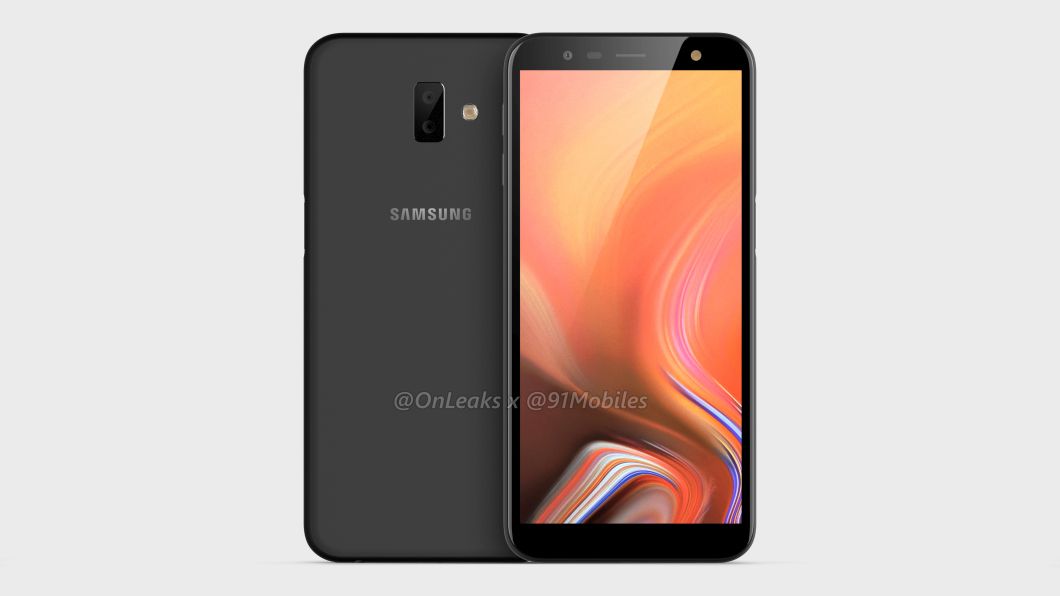
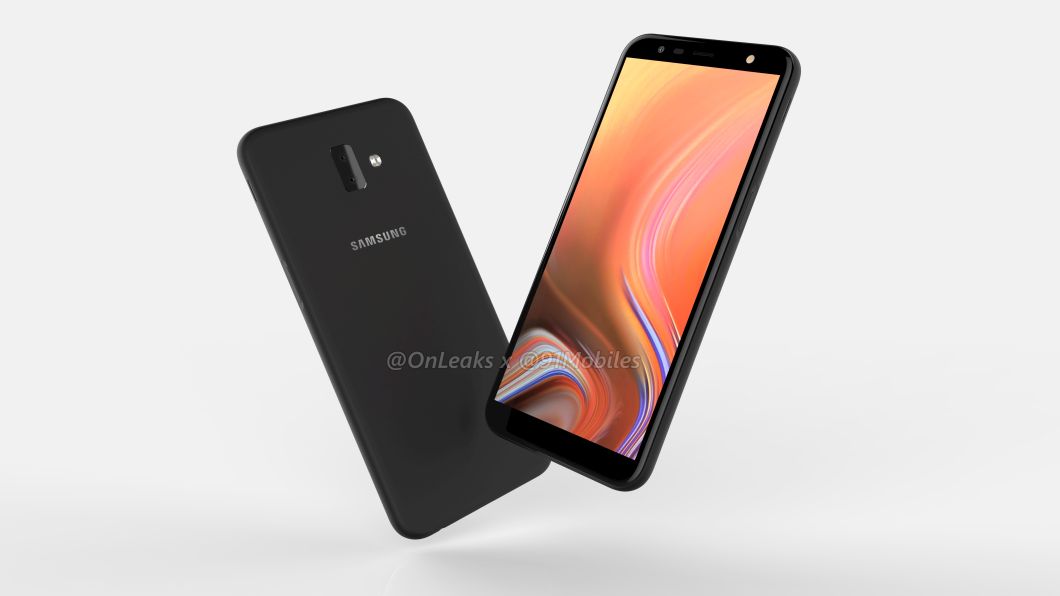
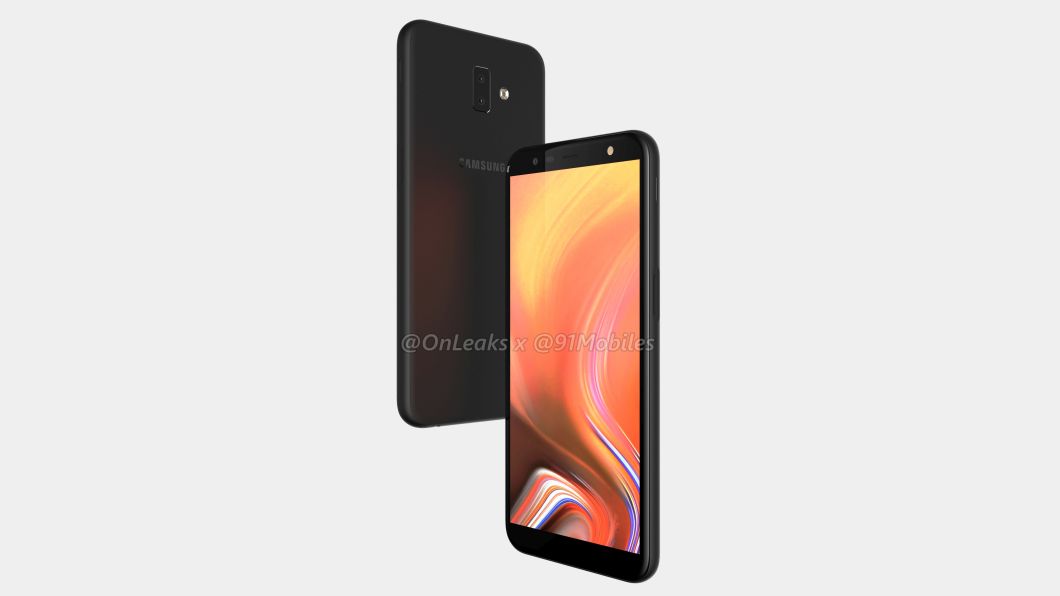
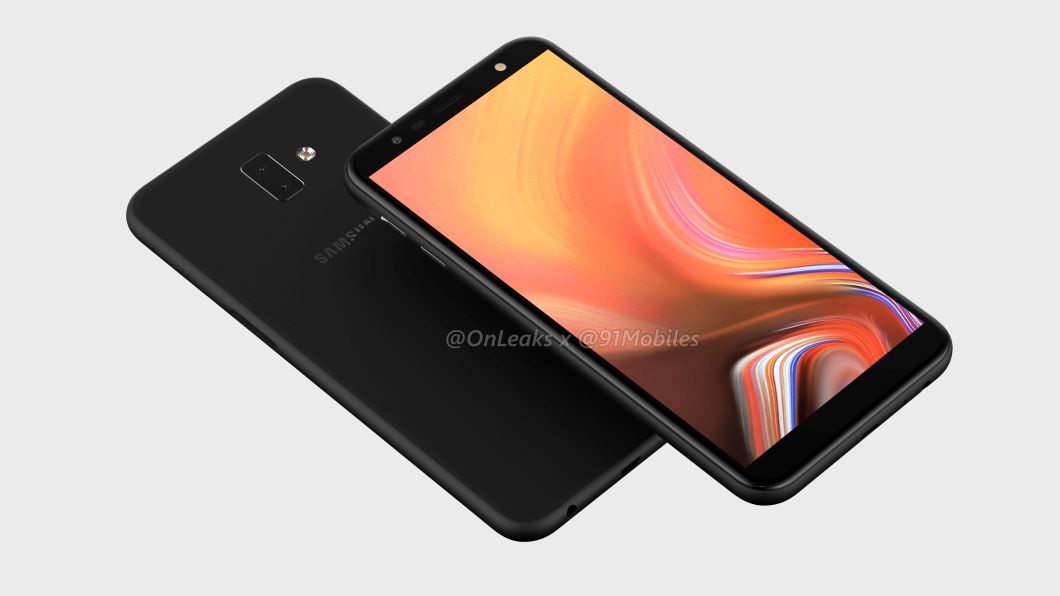
CAD renders show a side-mounted fingerprint reader on the Galaxy J6 Plus

Certifications and support pages have revealed that Samsung is gearing up to launch the Galaxy J6 Plus in the near future. There is also evidence showing that the company will market this model as the Galaxy J6 Prime in some markets. While the ‘Plus’ suffix is a hint for what to expect from this device, there hasn’t been any significant leak so far.

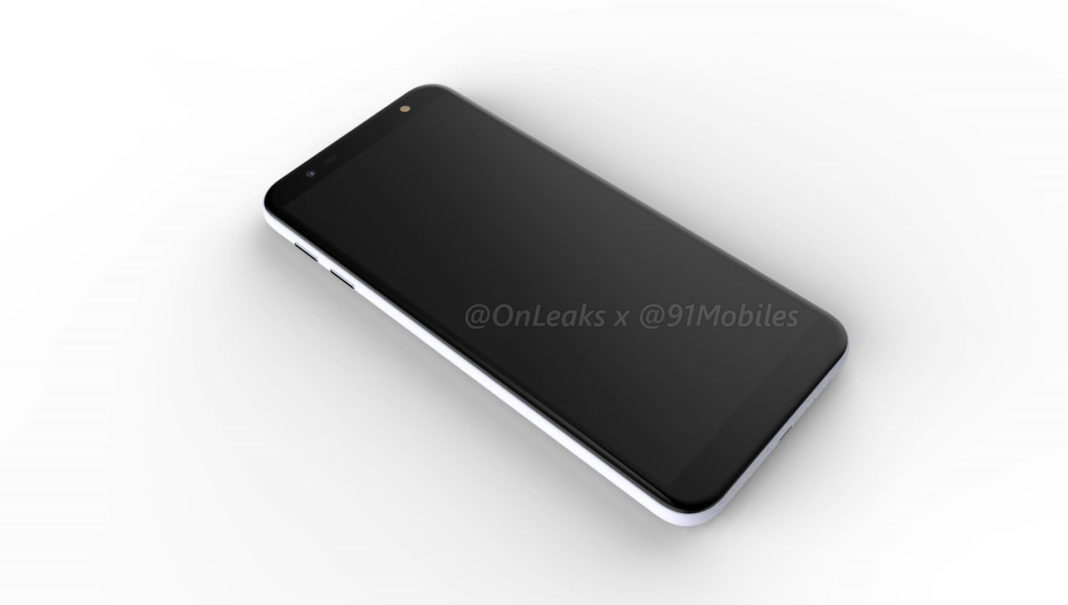
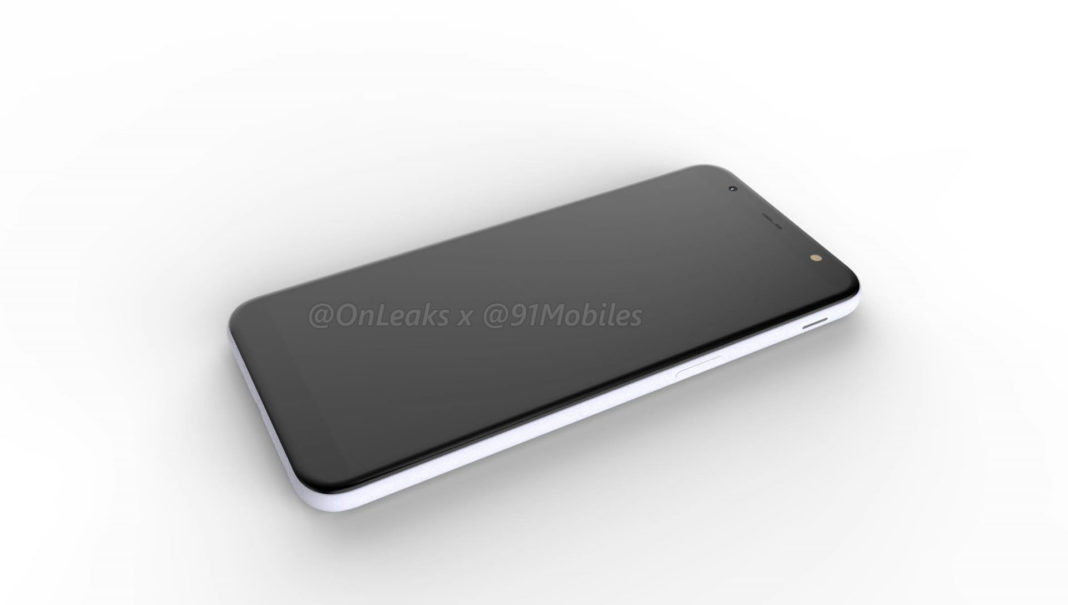
Though it isn’t exactly a ‘leak,’ 91mobiles and Onleaks have teamed up to publish the CAD renders and a 360-degree video of the Galaxy J6 Plus, which mostly confirms our conjectures about the device. As predicted, the Galaxy J6 Plus brings a bigger 6-inch screen and a vertical dual-camera setup on the back. The renders peg the device dimensions at 161.6 x 77 x 8.2 mm.

Galaxy J6 Plus renders show a new fingerprint reader placement

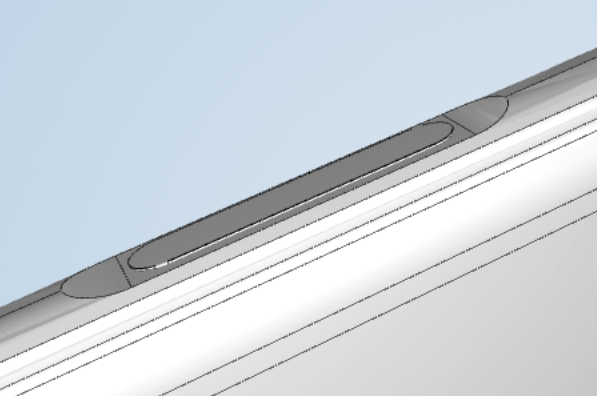
The most interesting revelation from the video, however, is that the Galaxy J6 Plus will reportedly sport a side-mounted fingerprint reader, possibly embedded into the power button on the right side of the device. So far, the company has placed fingerprint sensors either on the front or back of the devices, making this the first Samsung smartphone to break the trend. If true, the new placement is bound to make device handling experience different for right and left-handed users. Accuracy is also questionable since the sensor surface area will be smaller on the sides.

There were reports that the Galaxy J6 Plus will swap the Exynos 7870 SoC for a Snapdragon 450 chipset, but we haven’t seen any clinching evidence yet. Since Samsung tends to use both Exynos and Snapdragon variants of the same model to cater to different regions, a Snapdragon processor being used as a differentiator between the Galaxy J6 Prime and Plus variants is not far-fetched.

The post CAD renders show a side-mounted fingerprint reader on the Galaxy J6 Plus appeared first on SamMobile.


from SamMobile https://ift.tt/2MpUbIq
via IFTTT

Samsung Galaxy Tab A 10.5 review: An unassuming mid-range Android tablet

The Galaxy Tab A 10.5 was launched alongside the Galaxy Tab S4, which might be why it isn’t getting much attention. Where the Tab S4 is a premium tablet, the Tab A 10.5 is decidedly mid-range. It does get some impressive features, though, like four speakers, a high-resolution display, and a big battery. We had the chance to test the tablet out thanks to Samsung India, and this review will tell you if the Galaxy Tab A 10.5 is worth your hard-earned money.

So, let’s begin.

Design
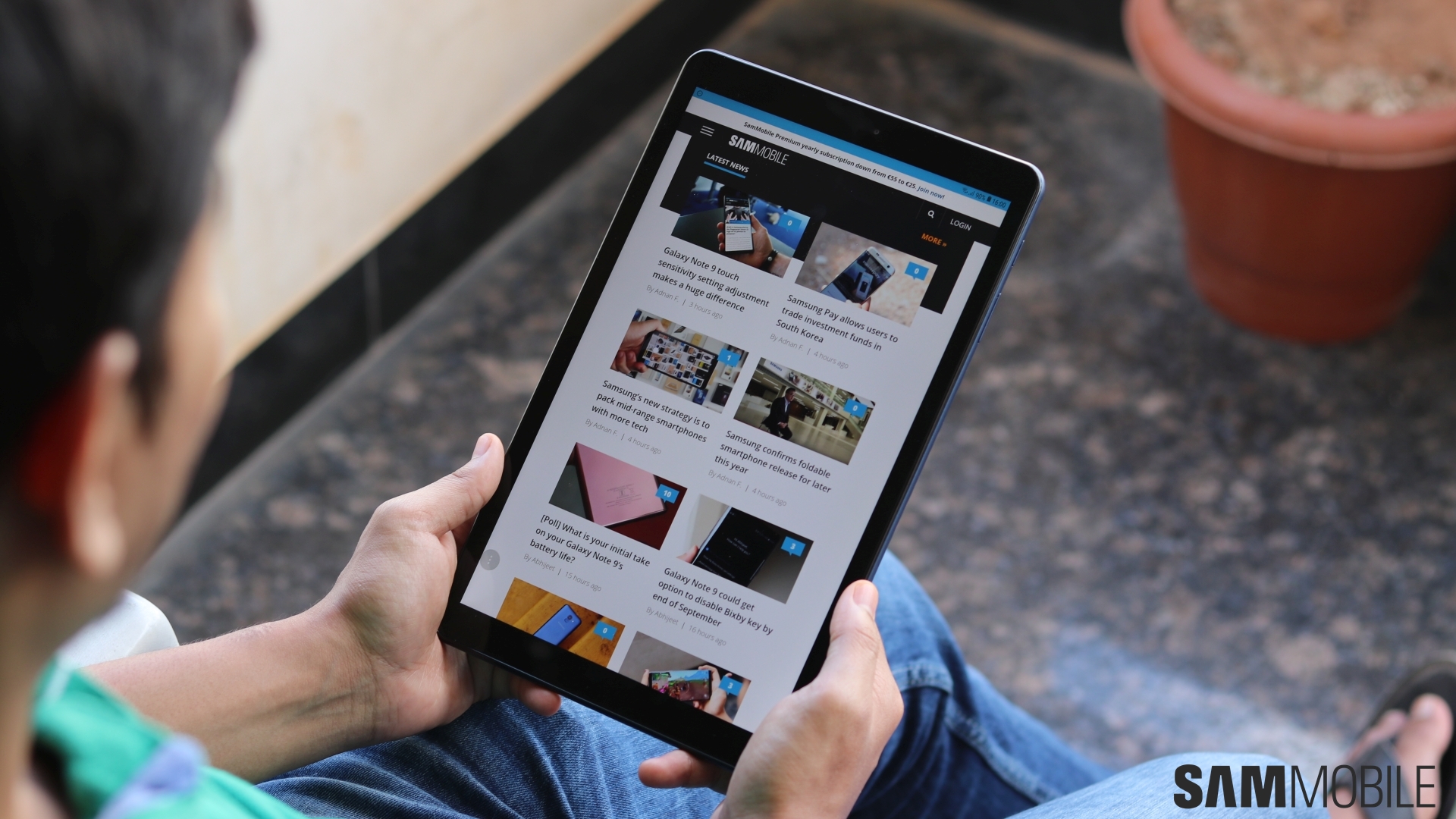
Galaxy Tab A Review

With a 10.5-inch display, the Galaxy Tab A 10.5 is naturally a big tablet. It’s got plenty of bezels as well around the display, with the lack of a physical home key not offering benefits in terms of size reduction. But thanks to a soft touch rubber back, the Tab A offers excellent grip and doesn’t make you fear for its safety as a tablet with a glass back would (the Galaxy Tab S4, for example). It gives off a high-quality feel overall, with its weight also feeling just right.

Galaxy Tab A Review

Galaxy Tab A Review Galaxy Tab A Review Galaxy Tab A Review Galaxy Tab A Review

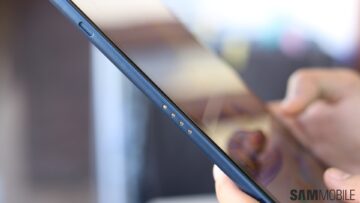
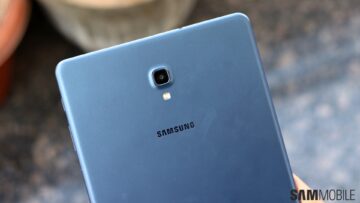
The placement of the physical keys is as we have seen on other Samsung tablets. The volume and power keys are on the right side (and so is the SIM slot in the LTE variant), the four loudspeakers are placed at the top and bottom corners, and four POGO pins are on the left for connecting to the charging dock Samsung is selling as an accessory. The back’s as plain as expected, with just the camera, flash, and Samsung logo taking up space in the upper half. The back does look classy on our blue review unit, and it’s a color we would recommend if you’re bored of the usual black or gold color options.

Display, Sound
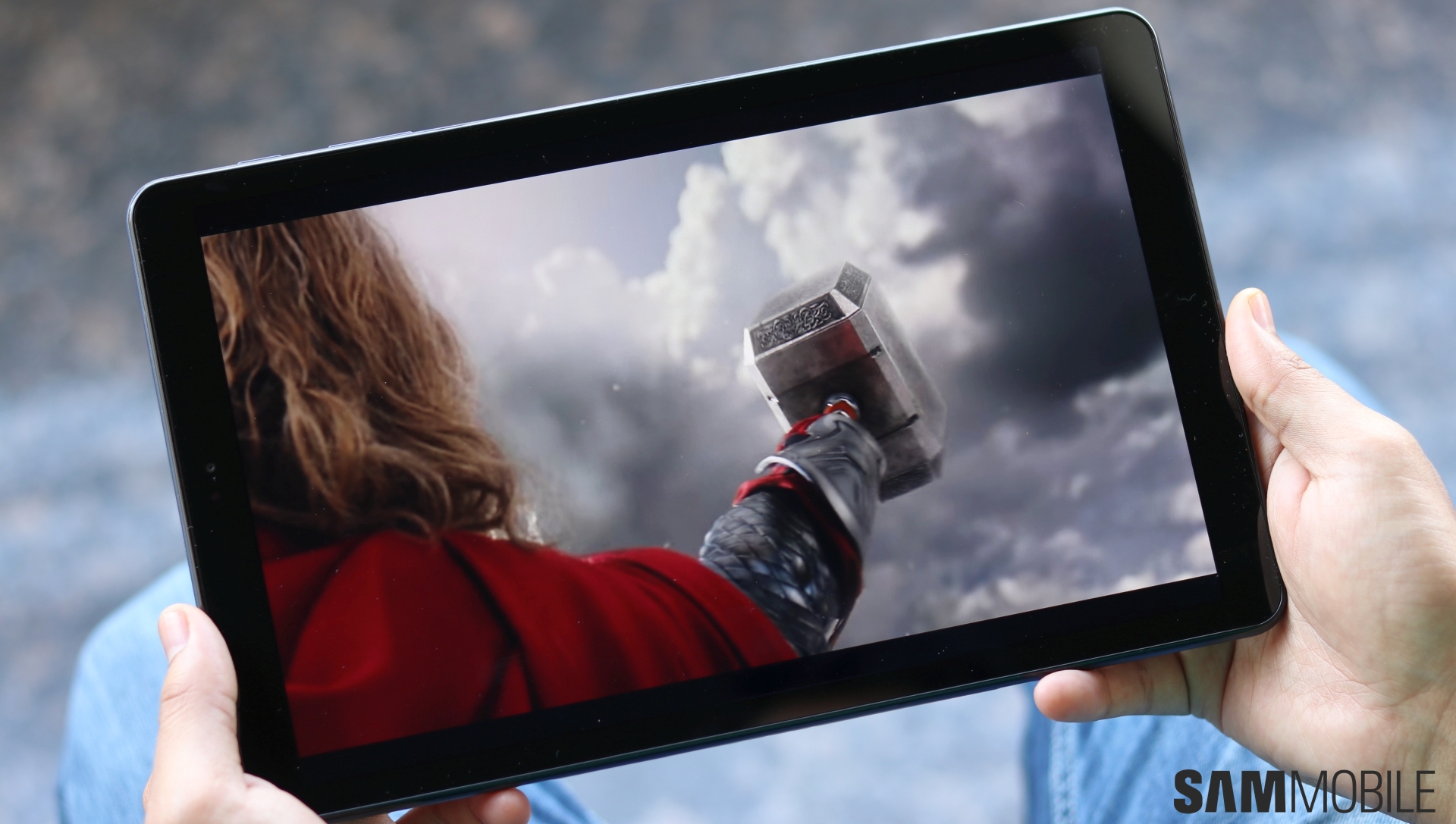
Galaxy Tab A Review

The 10.5-inch display on the Galaxy Tab A 10.5 isn’t great. It’s an LCD panel, and while that in itself wouldn’t be a huge issue, this particular panel is just slightly above average. First and foremost, it doesn’t get bright enough, either indoors or outdoors. And while the colors aren’t exactly dull, they don’t pop as they would on an AMOLED display. The 16:10 aspect ratio and the display’s 10-inch+ size are pretty much the only things good about it. The screen is also quite sharp thanks to a resolution of 1920×1200 pixels, but other than that, this display isn’t really better than what you would find on, say, the Galaxy Tab A (2017).

The Tab A 10.5 has software navigation keys instead of Samsung’s traditional physical home button and capacitive back and recent apps keys. That means there’s no fingerprint sensor, so you can only use facial recognition other than the usual Android security options on this tablet. Thankfully, you can enable the option to double tap the display to wake it up, which is handy now that there’s no hard home button.

Galaxy Tab A Review

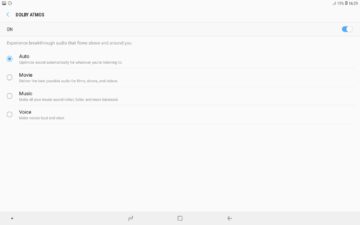
The Galaxy Tab A 10.5 also gets four loudspeakers, just like the costlier Galaxy Tab S4. These aren’t tuned by AKG, but you do have Dolby Atmos support. I have somewhat mixed feelings about the quality of sound that comes out of these speakers, though. They don’t distort at even the highest volume levels when you’re watching movies on Netflix, but a little more bass could have made the experience much better. The speakers don’t exactly sound tinny, but the beats don’t have the thump you expect, especially when playing music.

What about Dolby Atmos? Well, the volume levels remain mostly the same with Dolby Atmos enabled, but it does allow better sound separation for a more surround sound-like effect. Speaking of volume levels, the Tab A 10.5 is loud enough for use in your bedroom, but you might want to switch to earphones in the living room. As expected, there are no earphones provided with the tablet, but if you have good ones at your disposal, just enable Dolby Atmos for the best experience.

Performance
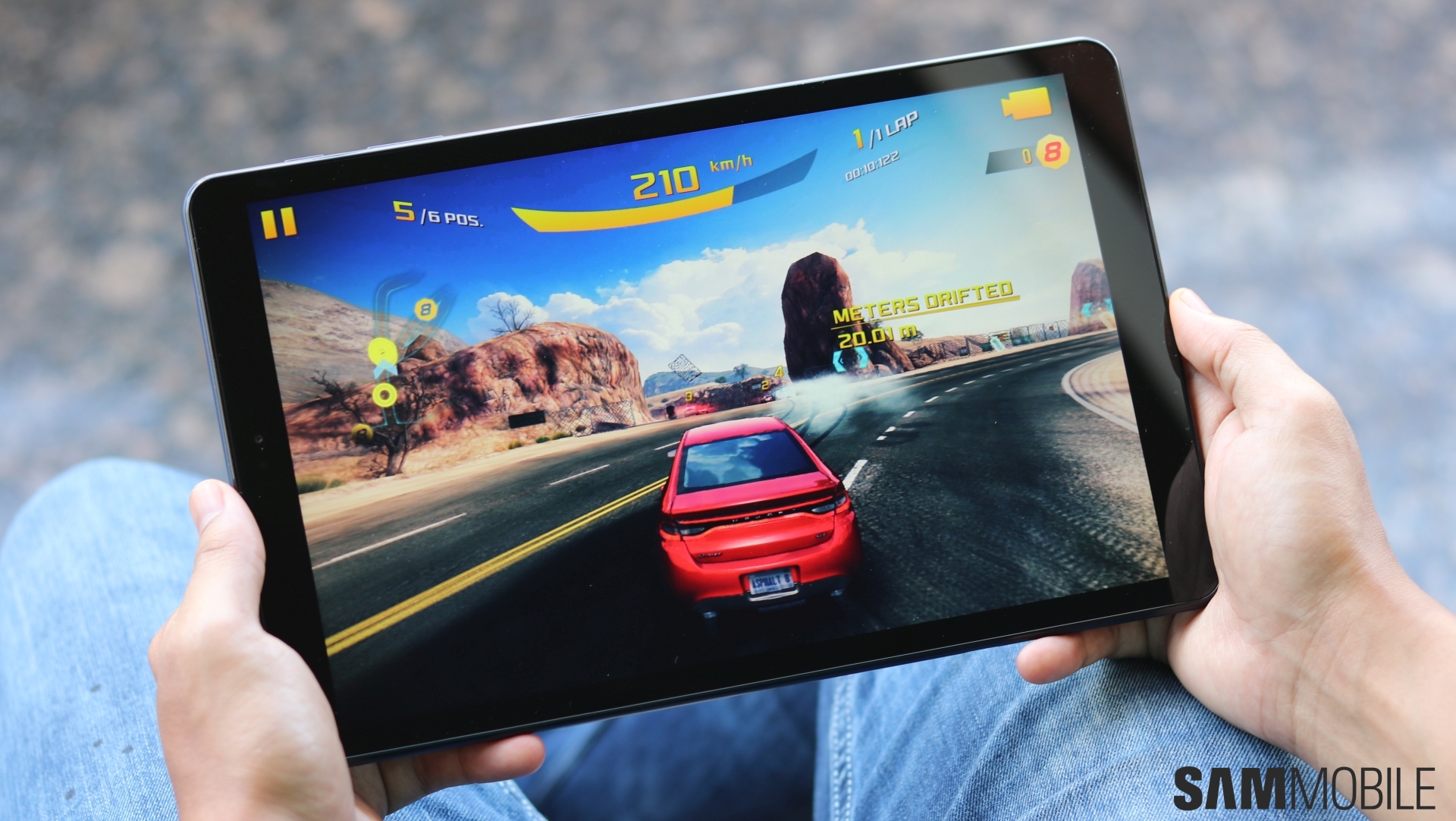
Galaxy Tab A Review

The Galaxy Tab A 10.5 is something of an oddball when it comes to performance. It has a Snapdragon 450 SoC with 3GB of RAM, and while I found it performed well in games like Modern Combat 5 and PUBG at the highest graphical settings, the basic user interface had quite a bit of stutter in the animations. But that’s not to say the tablet is slow in everyday use. Apps launched quickly enough and browsing was mostly a smooth experience in both Google Chrome and Samsung Internet.

But some high-end games, such as Batman: The Enemy Within or the new Asphalt 9, had low frame rates, so I’m guessing it’s more about how well a game is optimized for the Snapdragon 450 and the Adreno 506 GPU inside. Something as simple as changing the wallpaper also took more time than it should, and it also seemed to have poorer connectivity with Wi-Fi networks in problematic spots at my home. Other devices also have issues in these spots, but the Tab A was more prone to disconnecting from the same Wi-Fi network where the signal wasn’t strong enough.

Facial recognition is also too slow on this thing to be useful, unless the lighting conditions are excellent. Part of the reason for that is most likely the average front camera (more on that in the camera section below), but it still means you don’t really have a good substitute for a fingerprint sensor here. Overall, I feel like the device’s performance is good enough for most tasks, but it might not stay that way a few months later.

Software
Galaxy Tab A Review

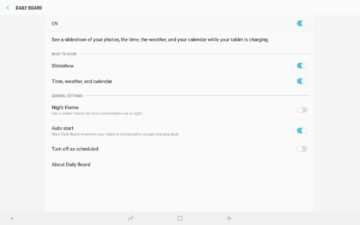
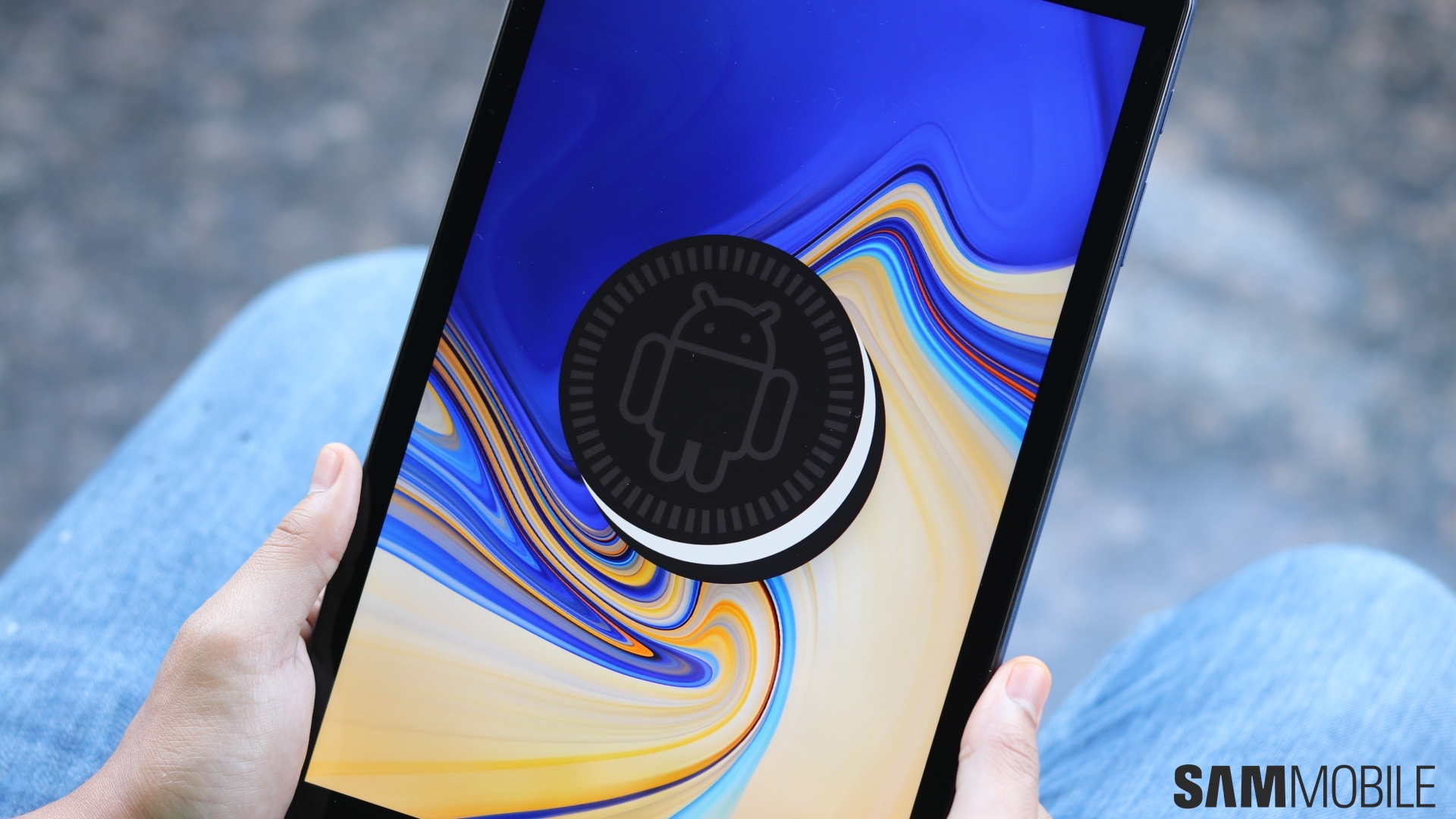
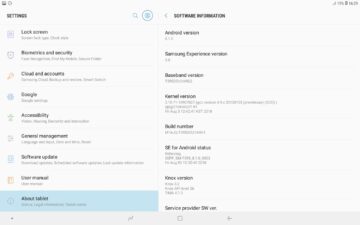
The Galaxy Tab A 10.5 runs Android 8.1 Oreo with Samsung Experience 9.5, but it doesn’t have most of the features you find on the Galaxy Tab S4 or any mid-range or flagship Galaxy smartphone (like theme support or Dual Messenger). The one new feature here is Daily Board, which shows you the time, your gallery photos, weather information, and calendar events when the tablet is charging. But it doesn’t work with regular charging, only with the charging dock that Samsung sells as a separate accessory. Samsung is basically asking you to spend extra money to use the Tab A 10.5 as an always-on display of day-to-day info, making it quite useless overall.
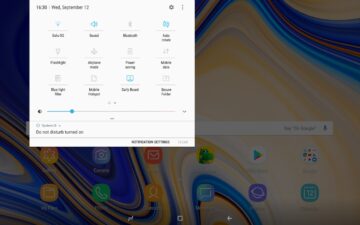
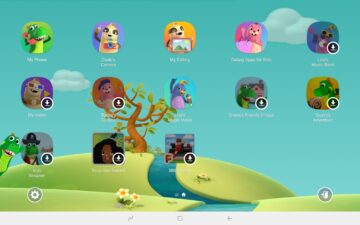
Basic features like blue light filter, Secure Folder, and Multi Window multitasking are present. The tablet can be slow when you’re selecting what apps to use in Multi Window configuration, but once the apps are up and running, performance isn’t an issue. And, like other tablets in the Tab A lineup, the Tab A 10.5 comes with Kids Mode. You can set up your kid’s profile by entering the name, date of birth, and gender, then add some apps and games, emergency contacts, and images and videos that he/she can access. Kids Mode offers a few suggestions for children games on the main screen, and you can also set a daily usage limit.

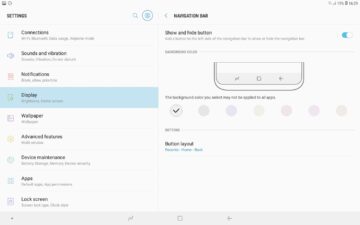
The software navigation keys are customizable – you can change the background color of the navigation bar and swap the location of the recent apps and back keys. But, as we said in our Galaxy Tab S4 review, it would be great to be able to access the navigation keys by swiping in from any part of the screen. Thankfully, the notification shade expands in the left, right, or center of the screen based on where you swipe down from.
Battery life
Galaxy Tab A Review

Thanks to the 7,300 mAh battery inside, the Galaxy Tab A 10.5 is excellent when it comes to battery life. Samsung touts 14.5 hours of video playback, and I think that’s actually accurate. I was able to watch nearly four hours of Netflix on a Wi-Fi connection at full brightness, and I lost 30 percent battery. So that’s at least 12 hours of video playback and you’d still be left with 10 percent battery. Impressive, although not entirely surprising given the mix of the humble specs and large battery size. I also didn’t have a SIM card inside, but unless you use it on mobile data too often, battery performance should be similar. And thanks to fast charging, the Tab A 10.5 can recover 100 percent charge in a little over three hours.

Cameras

Galaxy Tab A Review

The Tab A’s cameras are, in short, pretty average. The front camera is especially bad and takes selfies of a quality as you would expect from a $100 Android phone. Video calls don’t look great if the other party is using a big display as well, but if you’re on a video call with someone using a smartphone, it’s not as bad. In fact, the photos from the rear camera also look poor because of how big the Tab A 10.5 display is. Overall, this tablet is okay for video calls with your friends and family, but that’s about it. At least the camera interface is the same as the Galaxy S9’s, although that’s not much of a saving grace unless you happen to be one of the few folks who take regular photos on a tablet.

Conclusion

If the definition of a mid-range device is that it neither excels nor fails in any particular aspect, then the Galaxy Tab A 10.5 is the perfect mid-range tablet. The display is of high resolution but the quality of the LCD panel is rather average. Performance is great in some high-end games, but not so much in other games and basic user interface. The four loudspeakers offer good quality sound, but you won’t find the volume levels high enough for a large room. The battery life is the only aspect that’s truly impressive. Well, the design is also nice, with the rubberized back more suitable for a device so big, but you have to give up on a fingerprint sensor and live with not-so-quick facial recognition.

So is the Galaxy Tab A 10.5 worth buying? It depends. If you’re in the market for a not-too-pricey Android tablet with a big, sharp screen and good audio for media consumption, the Tab A 10.5 is a good option. It doesn’t really have any direct competition, unless you aren’t too much in love with the Android OS, in which case the Apple iPads come into the picture. You can get the 9.7-inch iPads for similar (or even lower) prices on Amazon and other retail stores. The app ecosystem for the iPad is better than Android’s, but you do have to pay for some apps that you can get for free on the Google Play Store.

We know we haven’t really answered if you should buy the Tab A 10.5 or not, and that’s because there is no clear answer. If you want an Android tablet that gets the job done and are okay with the Tab A 10.5’s price tag (which starts at around €329 for the Wi-Fi model and goes up to €389 for the LTE variant), you won’t have any major complaints. You won’t really love anything about it, either (except battery life), which is ultimately the biggest issue with the Galaxy Tab A 10.5.

Pros Cons
Big, sharp display LCD display quality is average
Excellent battery life Speakers need more thump/higher volume
Four speakers, Dolby Atmos support Performance isn’t consistent
Fairly good performance despite high-resolution display Poor cameras
Good grip thanks to soft rubber back
Daily Board feature works only with Samsung charging dock


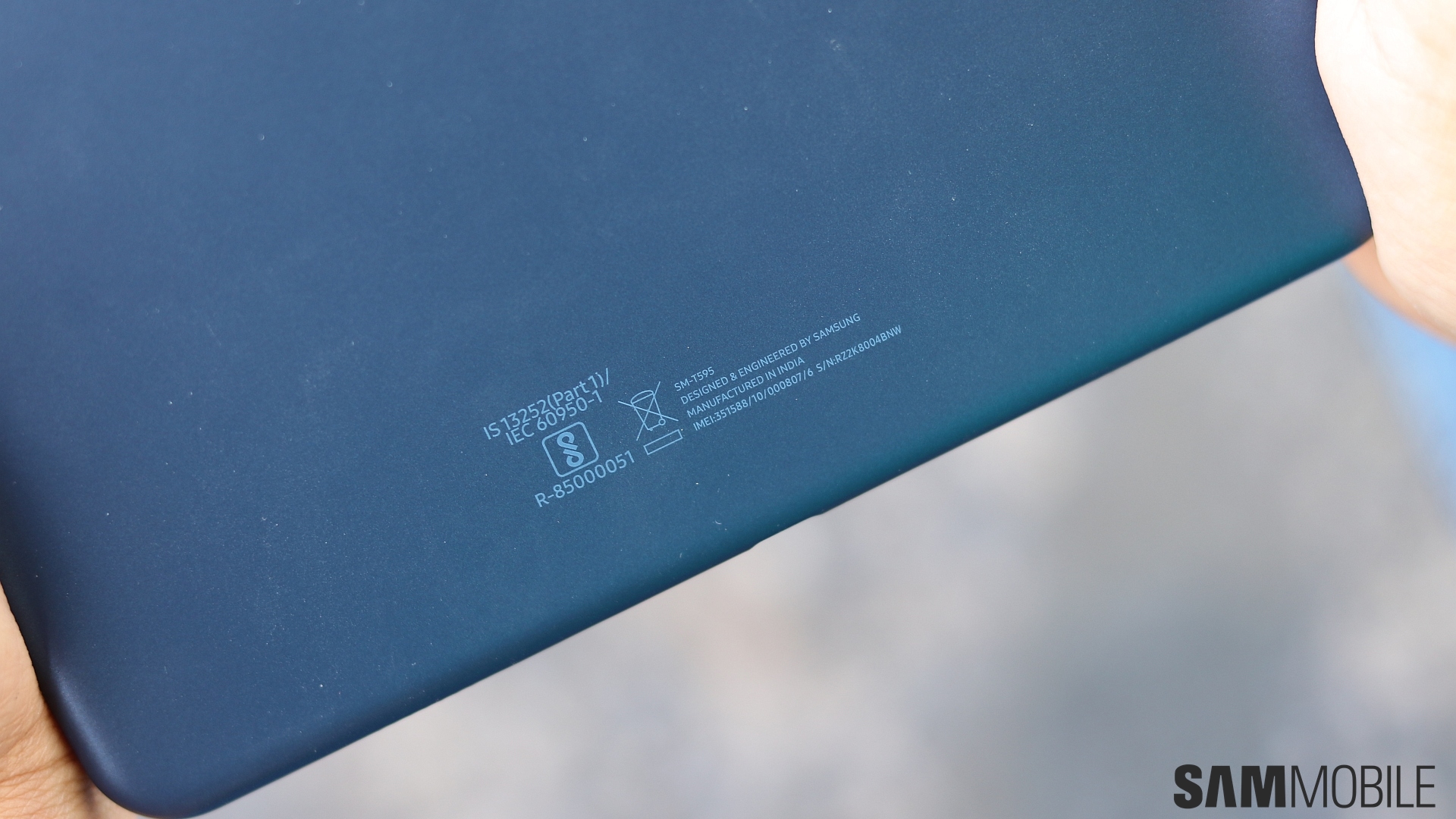
  • Model: SM-T595
  • Dimensions: 260.0 x 161.1 x 8.0mm
  • Display: 10.5” (319.7mm) TFT
  • CPU: Qualcomm Snapdragon 450
  • Camera: 8 MP, CMOS

The post Samsung Galaxy Tab A 10.5 review: An unassuming mid-range Android tablet appeared first on SamMobile.


from SamMobile https://ift.tt/2Mp35Wr
via IFTTT

Samsung is getting rid of Call Stickers on the Galaxy S8 and other devices

Some of you may have noticed stickers pop up when calling someone from the Galaxy S8. It’s the feature Samsung refers to as Call Stickers and it was introduced with the Galaxy S8 and the Galaxy S8+. They would come up if you called a contact who also had either flagship and both of you had Profile Sharing enabled in the Contacts app.

With Calls Stickers you could decline calls by sending the person a sticker or even send stickers during calls. The feature made little sense apart from appearing as an effort by Samsung to tap into the increasing emoji and sticker-heavy social media preferences of users.

Call Stickers on the Galaxy S8

However, it appears that the feature hasn’t been used as widely as the company would have hoped. We hear that Samsung is shutting down Call Stickers on the Galaxy S8 and other compatible devices because not a lot of people are using this feature. Samsung will soon begin notifying users that it will shut down Call Stickers over the next couple of months.

It will not be possible to use the feature after December 17, 2018 if the Phone app has been updated on devices running Android Oreo and Nougat. If the Phone app has not been updated on these versions, users will be able to decline calls with a sticker even after the cutoff date.

The company sold Call Stickers separately as well. Those who purchased them through Galaxy Apps will be able to request compensation for their purchase. It already stopped new sales of Call Stickers since June this year

Did you ever use this feature or are you just finding out about it now?

The post Samsung is getting rid of Call Stickers on the Galaxy S8 and other devices appeared first on SamMobile.


from SamMobile https://ift.tt/2COhFaz
via IFTTT

How to make YouTube full-screen on the Galaxy Note 9

Wondering how to make YouTube full-screen on Galaxy Note 9? You may not know what to do if you have just moved to a Samsung device with its latest Galaxy Note flagship. This wasn’t a problem before Samsung launched the tall and narrow Infinity Display with the Galaxy S8. The YouTube app initially had a dedicated button that would make the video fit the entire width of the screen and remove the black bars on the sides.

That button was removed in a subsequent update. You’ll be more than aware of how to make YouTube full-screen on Galaxy Note 9 if you have been using an existing flagship. This guide is for those who are new to the Samsung device experience.

Don’t worry if you can’t find the dedicated button to make videos fit the entire screen in YouTube. You are still able to fully leverage the gorgeous Galaxy Note 9 display to watch YouTube videos. Speaking of YouTube videos, the Galaxy Note 9 is a YouTube-recommended device for the optimal viewing experience.

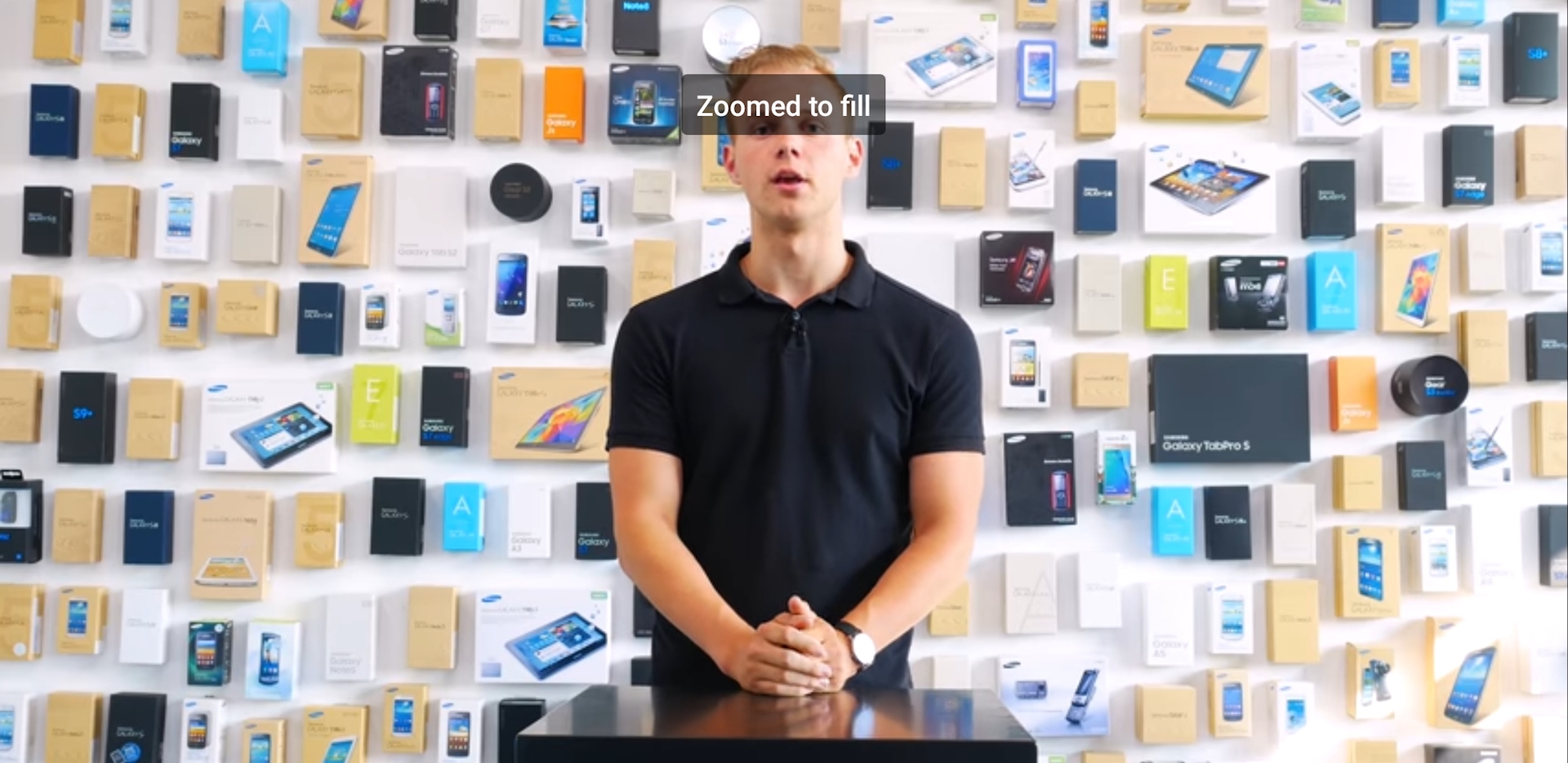
Pinch-to-zoom gestures are now used to make the video full-screen on devices with the Infinity Display. The video will fill the entire screen when it’s playing in landscape orientation after you pinch-to-zoom just like you would on an image in the gallery. Just place two fingers on the screen and move them away from each other. You’ll see “Zoomed to fill” appear up top to let you know that YouTube is now full-screen on the device. Zooming out is simple as well, just repeat the process in the opposite direction.

Do keep in mind that after you make a YouTube video full-screen on Galaxy Note 9 a small part of the top and bottom will get cut as most videos are not for the 18.5:9 aspect ratio of the device. If this irks you then your best bet is to watch the video without having it fill the entire screen.

This is a nifty little trick to have in your repertoire nonetheless. You can find more in our dedicated Galaxy Note 9 tips page.

The post How to make YouTube full-screen on the Galaxy Note 9 appeared first on SamMobile.


from SamMobile https://ift.tt/2oYHYRE
via IFTTT

Latest Galaxy Note 9 firmware update brings September security patch

Samsung has been a bit slow to roll out the security patch for this month even though it detailed the maintenance release about a week ago. The latest Galaxy Note 9 firmware update is rolling out now and it brings the September 2018 security patch in a handful of markets.

The Galaxy J5 (2017) was the first device to receive the latest security maintenance release from Samsung as part of its Android 8.1 update. The company started rolling out this update for the Galaxy J5 (2017) in the UAE yesterday.

Latest Galaxy Note 9 firmware update

Samsung is now rolling out firmware version N960FXXS2ARH6 for the Galaxy Note 9 with the September 2018 security patch. It’s available for users in the Baltic region in addition to Romania, Slovakia, Luxembourg and Bulgaria. Samsung is rolling out the firmware update over-the-air and the relevant files are also available for download from our firmware section.

The security patch for the month of September 2018 brings fixes for nine critical vulnerabilities that were discovered in the Android operating system. Fixes for 18 Samsung Vulnerabilities and Exposures (SVE) items are included as well alongside patches for dozens of high and moderate risk vulnerabilities in the Android OS.

Now that Samsung has started rolling out the latest Galaxy Note 9 firmware update with the September 2018 security patch, it’s only a matter of time before Galaxy Note 9 users in other markets across the globe get it as well. Other supported Samsung devices will be receiving the patch in the near future as well.

The post Latest Galaxy Note 9 firmware update brings September security patch appeared first on SamMobile.


from SamMobile https://ift.tt/2O9T8xP
via IFTTT

الثلاثاء، 11 سبتمبر 2018

Is it a good idea to encrypt SD card on Samsung Galaxy Note 9?

If you have been using a Samsung smartphone for quite some time then you will already be aware of how to encrypt SD card on Samsung devices. The procedure aside, is it really a good idea to encrypt the SD card on your device? You should certainly give it more thought if you are using an SD card.

Encrypt SD card on Samsung Galaxy Note 9

The real benefit of encrypting an SD card is that no one else can access what’s on it unless the card is in the device that was used to encrypt it. Not only that, the SD card won’t reveal its contents until that device is unlocked. Nobody will be able to access the files on the card unless it’s decrypted or accessed using the device it was encrypted on.

This guarantees data security if you ever lose the card, someone steals it or it gets stolen with your phone. Nobody can simply take it out and put it inside another device to access its contents. They would have to format it first before they can copy something else on it.

Herein lies the problem with encrypted SD cards. If your phone gets damaged beyond repair then there’s no way to recover the data on the card. It would only be usable again once it’s formatted which would erase all data.

Thus the responsibility falls on your shoulders to make backups elsewhere or you run the risk of losing all data on the encrypted SD card should something happen to your phone. Remember, the card can only be decrypted on the device that it was encrypted on.

Procedure

If you understand the risks involved and would like to encrypt SD card on Samsung Galaxy Note 9 then follow these steps:

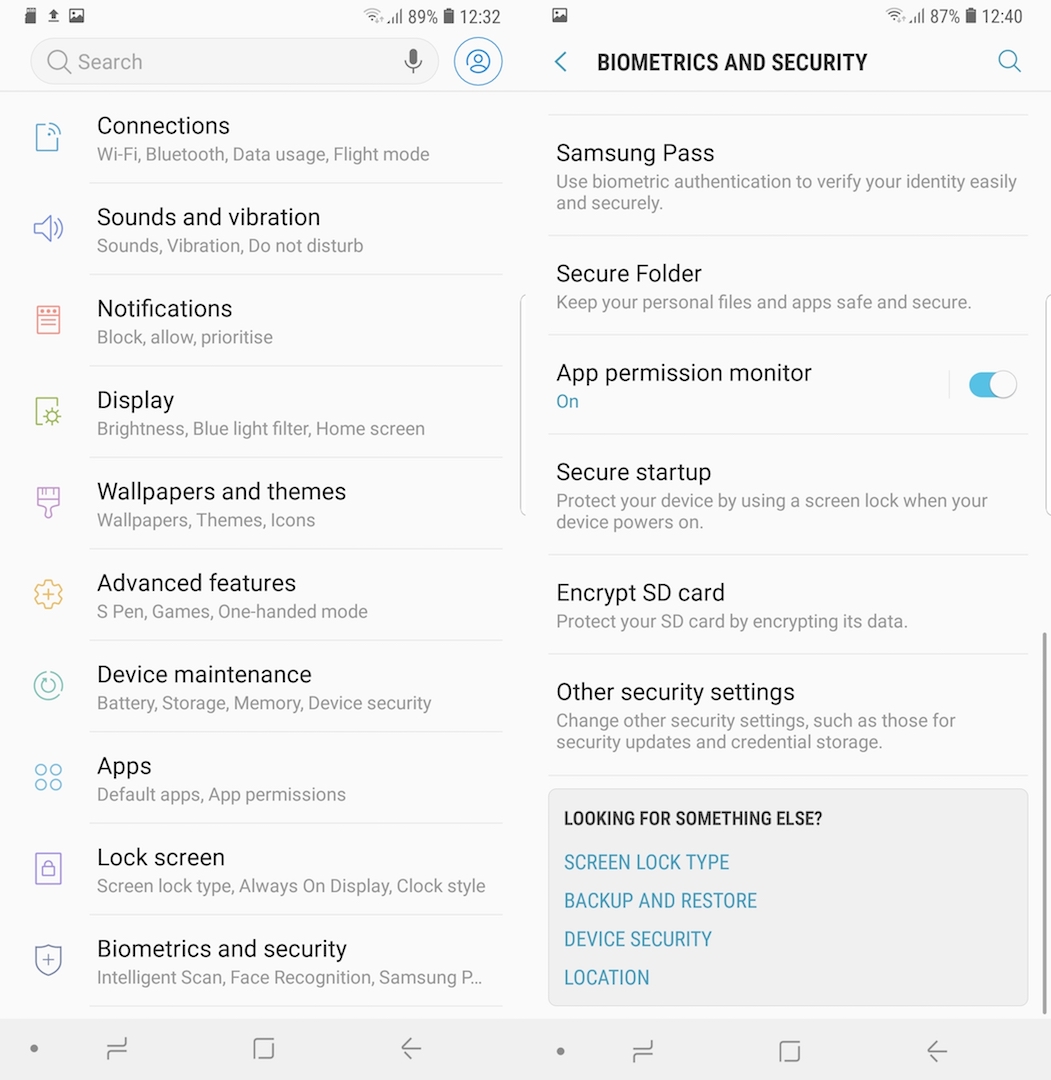
Step 1: Open the Settings app and enter the Biometric and Security menu

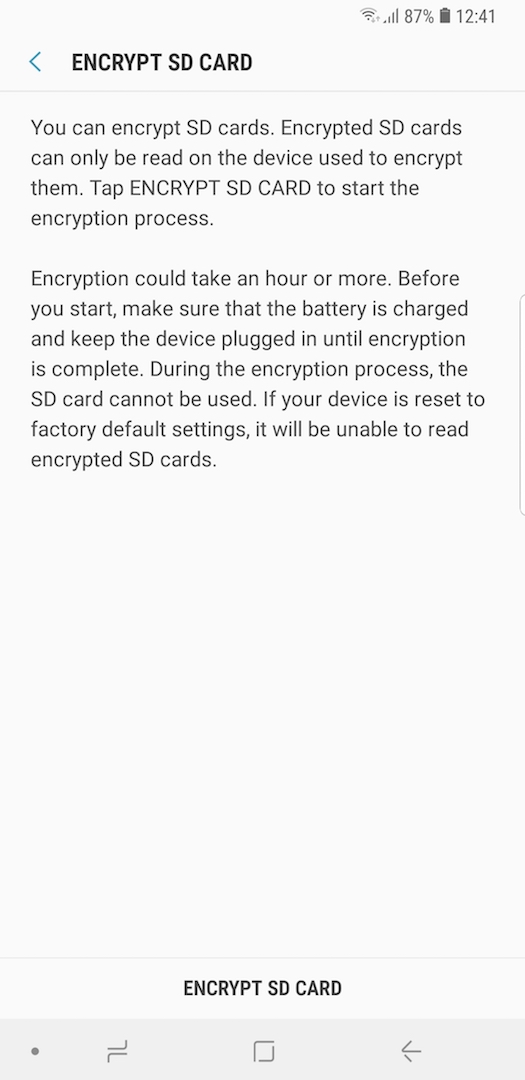
Step 2: Scroll down and select the Encrypt SD card option. Tap on Encrypt SD card and the process will begin once you have entered your password or PIN, if you have one configured


The process can take up an hour or more depending on how much content you have on the card. The microSD card can not be used during the encryption process. Bear in mind that the device will be unable to read the encrypted microSD card if it’s reset to factory default settings. The same procedure can be used to decrypt the SD card as well.

Questions? Reach out to us in the comments below. Don’t forget to check out all of our other Galaxy Note 9 tips.

The post Is it a good idea to encrypt SD card on Samsung Galaxy Note 9? appeared first on SamMobile.


from SamMobile https://ift.tt/2oZMH5B
via IFTTT

Samsung Opera House Bengaluru, India is the company’s largest retail store ever

Samsung has massively increased its presence in India over the years. It is currently the leading brand in the country across multiple product categories. Its investments in India have gone beyond selling products as the company now sees the country as the export hub to manufacture many of its products. The company made its intentions clear when it opened its largest mobile factory in the world in Noida, India, in July this year.

Continuing its efforts to strengthen its position in the country, Samsung has opened its largest retail store ever and “the world’s largest mobile experience centre” called Samsung Opera House in Bengaluru today. The company renovated and restored the iconic 33,000 square feet colonial Opera House property on Brigade Road over two years to transform it into a grand center, the first of its kind in India, for displaying its innovative products and services.

We went to the Samsung Opera House launch event today and found many similarities to the well-known Samsung 837 experience center in New York. The Samsung Opera House is spread across two floors and showcases a wide range of products, services, and experiences from Samsung and its subsidiaries. It is a one-stop shop to discover, experience, and buy Samsung products.

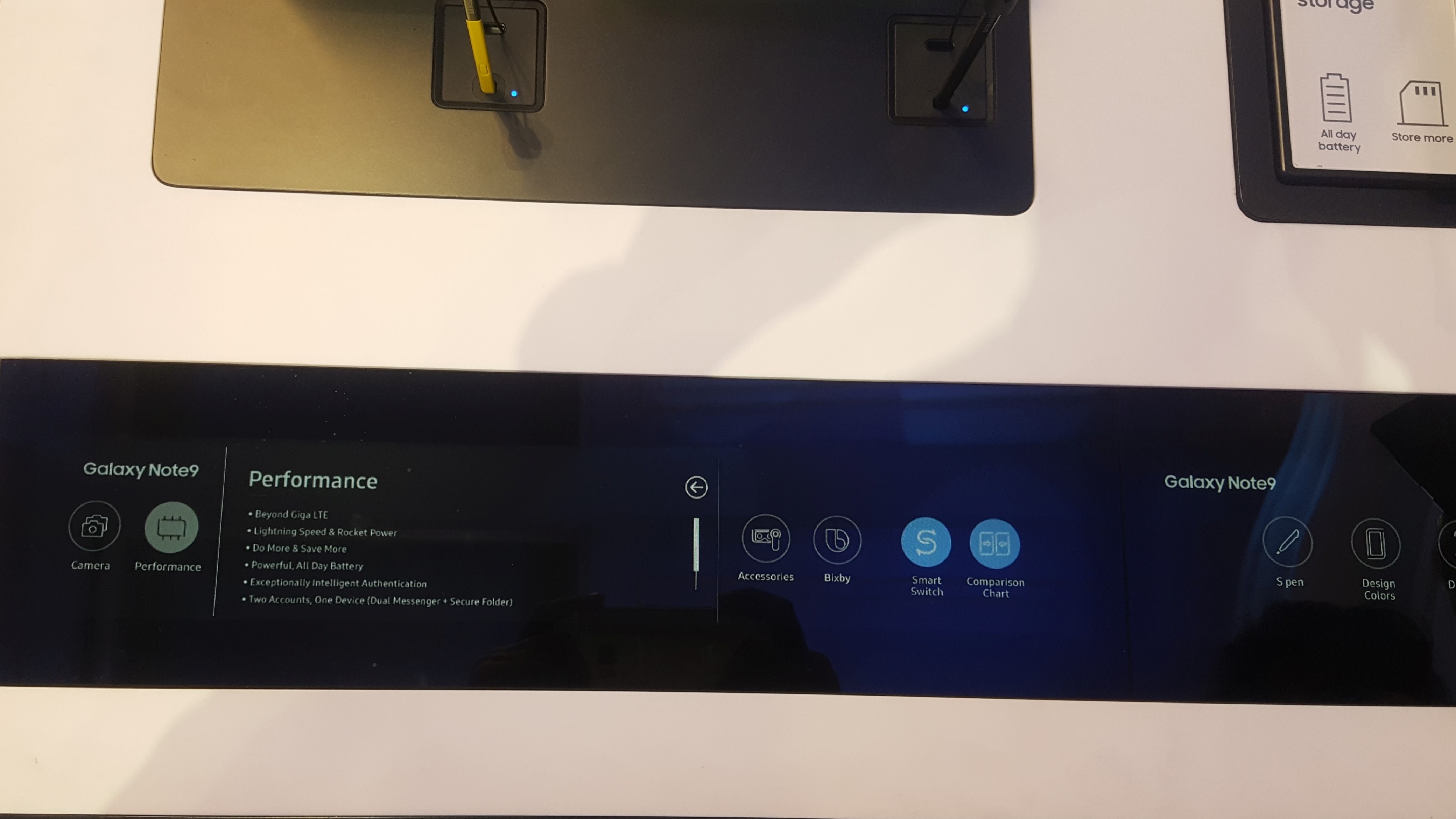
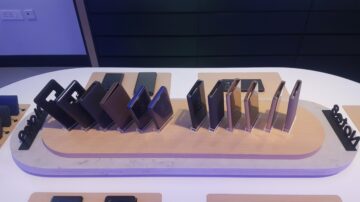
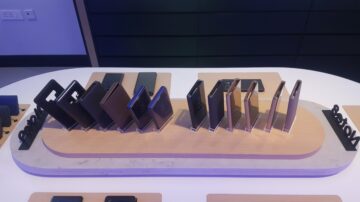
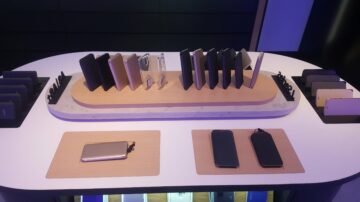
The ground floor is mostly reserved for the Galaxy smartphones, tablets, and wearables. Samsung’s entire smartphone lineup from its budget devices to flagship models are on display. All the tables where the smartphones are displayed feature a proximity sensor which detects a visitor walk-in and automatically displays the model specifications on a display strip in front of the device. The company has also created a separate section for a large collection for its device accessories.

Visitors can enjoy immersive VR experiences

Smartphones and wearable products are accompanied by compelling fitness and VR experiences. Visitors can try gamified VR fitness experiences powered by Samsung’s Gear Fit Pro and flagship Galaxy smartphones. The center also has immersive VR experiences such as the Whiplash Pulsar 4D chair to showcase the company’s VR offerings. Curved monitors and speakers from Samsung and its subsidiary, Harman, are the other highlights on the ground floor.

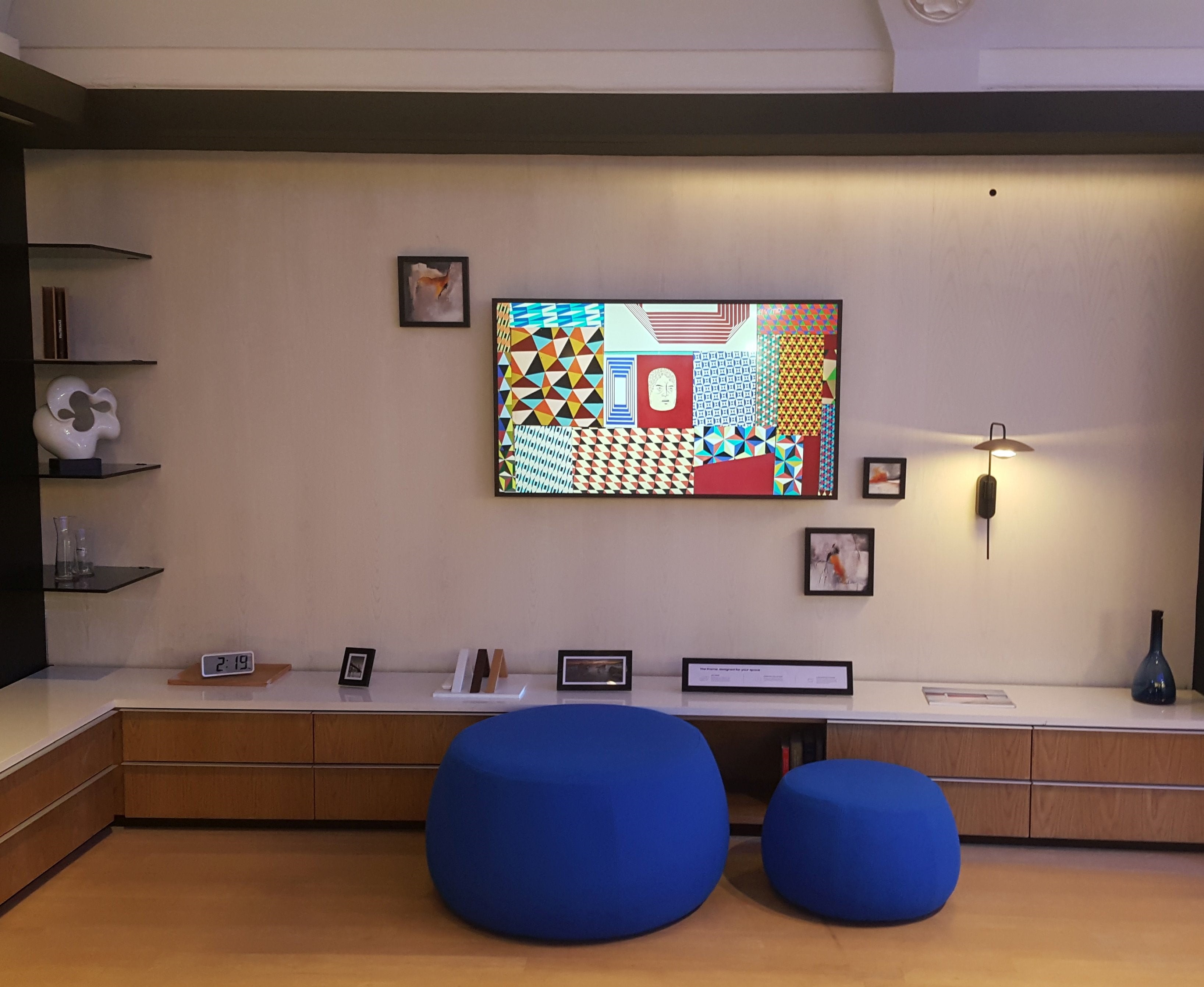
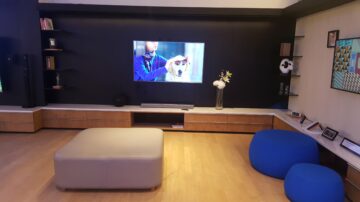
The top floor is dominated by home and kitchen appliances from Samsung. The space where the company’s TVs are displayed is designed like a living room to offer a realistic experience while exploring the products. The main attraction on the top floor is the home theatre zone, equipped with the best Samsung has to offer for media consumption. Customers can pre-book this zone for watching movies with family members but details about the process are a bit scarce right now.

Similar to other experience centers around the world, Samsung Opera House also has a section for quick after-sales service of hand-held products. Though IoT and Artificial Intelligence have become buzzwords found in every press release, there weren’t any compelling IoT experiences on display. Sure, there were all the Samsung smart devices that can communicate with each other at a rudimentary level, but there was no demo or experience that showcased the promise and potential of an IoT ecosystem powered by Samsung devices.

Samsung wants to make this center more than an outlet for sales and service. It intends to conduct many events focused on fitness, photography, cooking, music, start-ups, stand-up comedy, gaming, and more at the center throughout the year. The attempt is to transform the center from a store to a lifestyle destination for the young generation.

The post Samsung Opera House Bengaluru, India is the company’s largest retail store ever appeared first on SamMobile.


from SamMobile https://ift.tt/2Ob3my4
via IFTTT

جميع الحقوق محفوظة لمدونة الغريب 2013