The time has come: Samsung’s brand new Galaxy S20 series is now on sale in various countries. Did you receive yours in the mail already? If so, you can check out the following tips & tricks and learn all you need to know about customizing your phone according to your preferences.
Samsung Galaxy S20 tips & tricks
Everyone has their own steps they follow whenever they switch to a new phone. Whether setting a favorite wallpaper or creating contact and app shortcuts, the way you use your device is up to your own preferences. Still, new phones also introduce new features and the Galaxy S20, Galaxy S20+, and Galaxy S20 Ultra are no different in this regard. Therefore, it’s always good to know the extent to which you can customize your device, and to this end, we start off our tips & tricks list with one of the biggest-but subtle innovations introduced by the S20 series.
Display: Try 120Hz or WQHD+ resolution
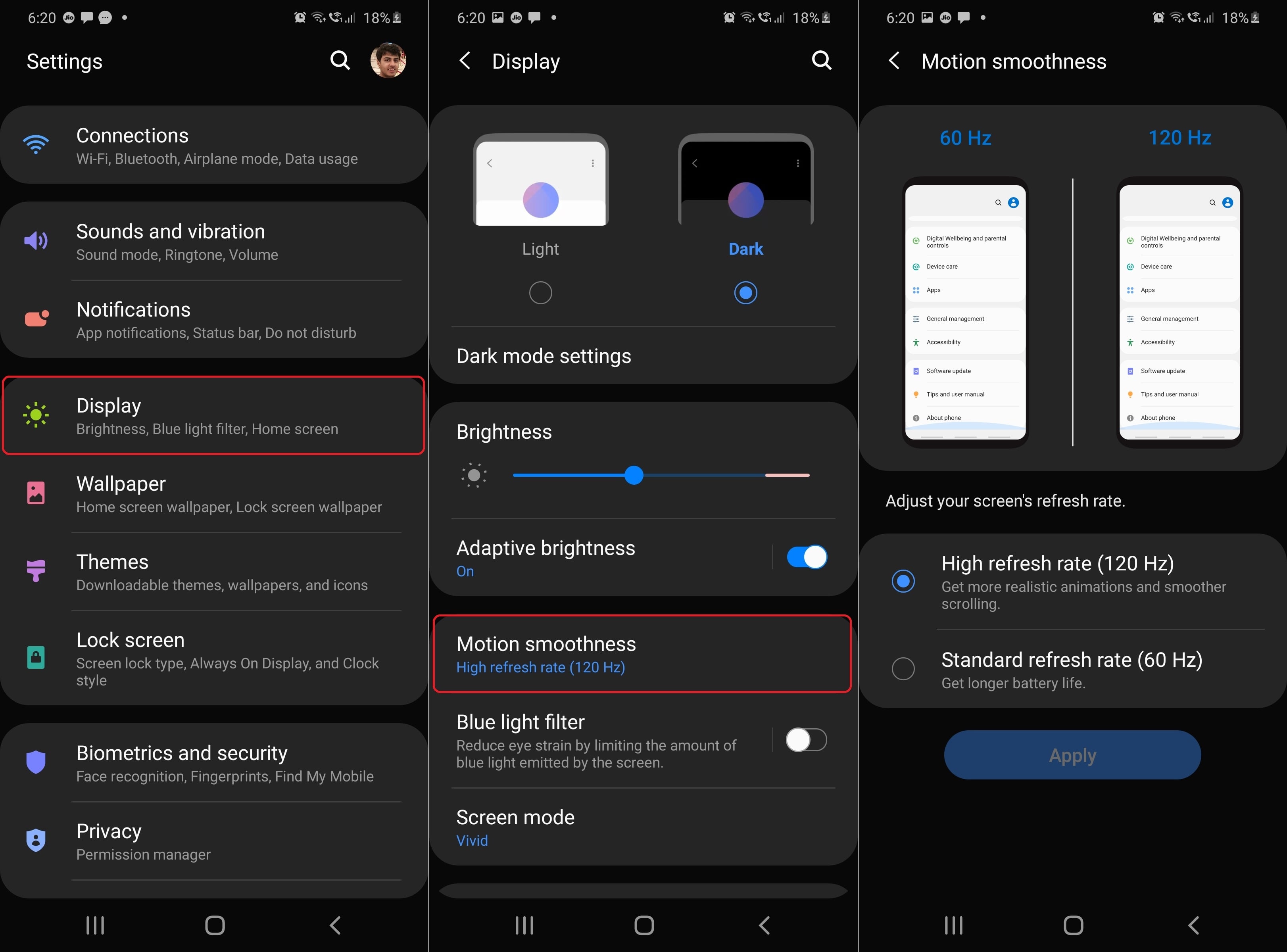
Every Galaxy S20 model comes with an option to set a refresh rate of 120Hz for the screen, but it’s not enabled out of the box. To enable it, open the Settings app, go to Display and select the option called High refresh rate (120 Hz) under Motion smoothness.
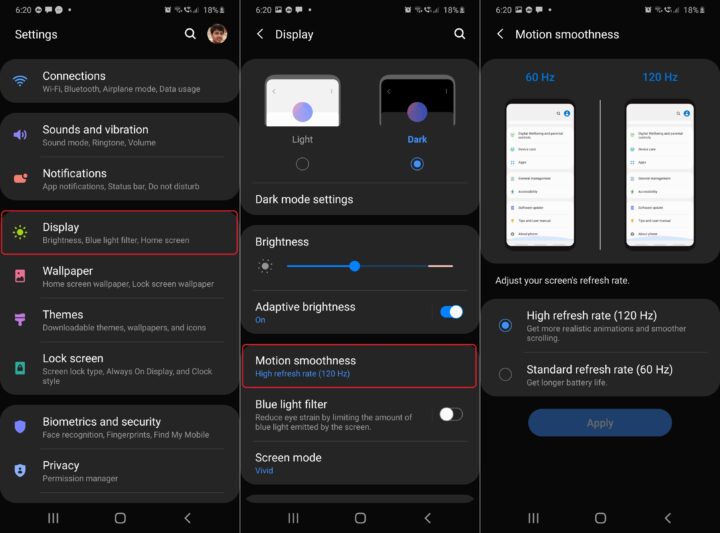
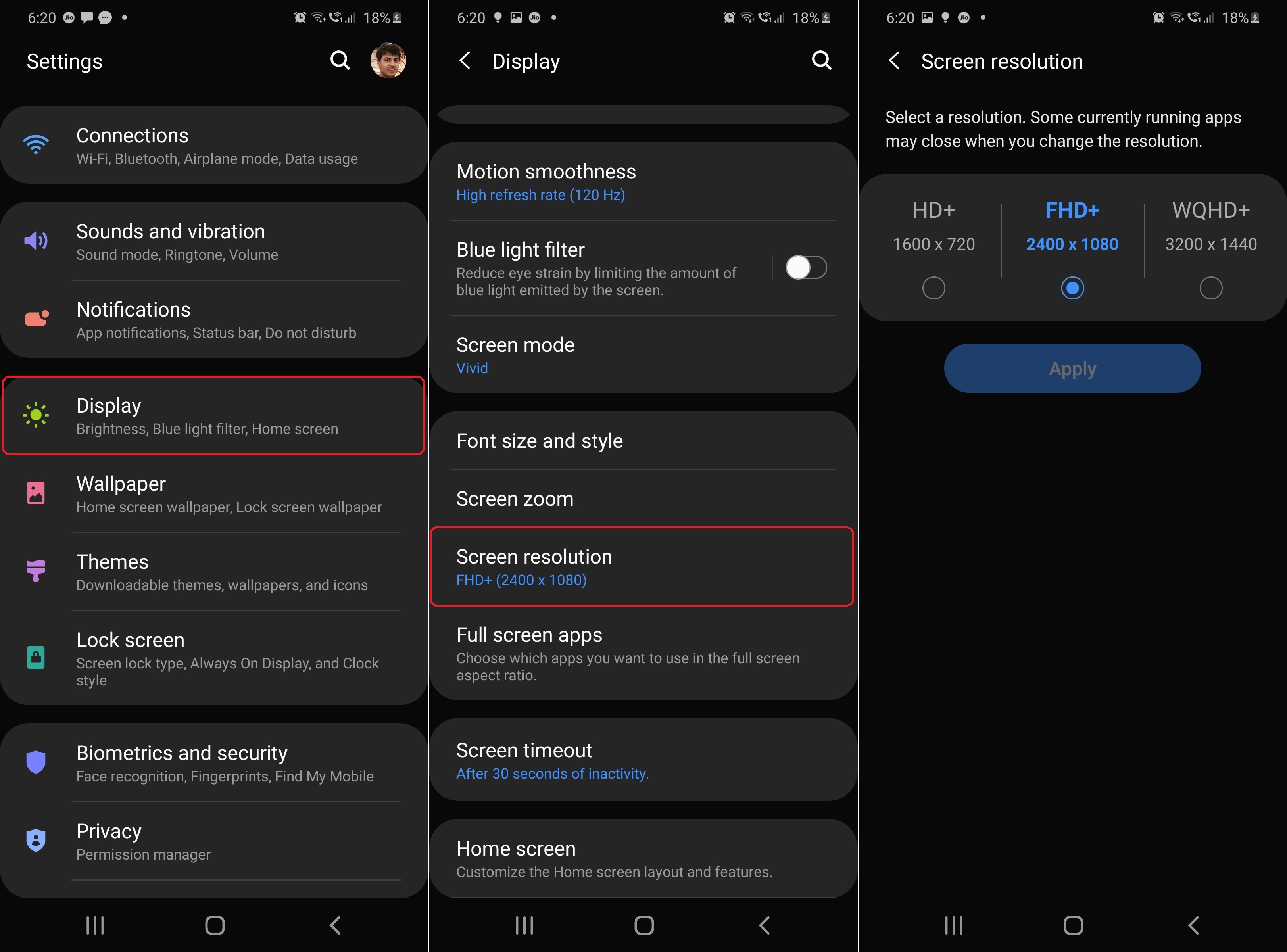
For High refresh rate to work, the screen must be set to the FHD+ (2400 x 1080) resolution, and that’s actually the default pixel count out of the box. Alternatively, you can choose a higher resolution instead of a 120Hz refresh rate. Select WQHD+ (3200 x 1440) in the Display menu under Screen resolution. You cannot set a 120Hz frequency for the WQHD+ display resolution, but you can still stare at the abundance of pixels and try to make them out individually. Good luck!
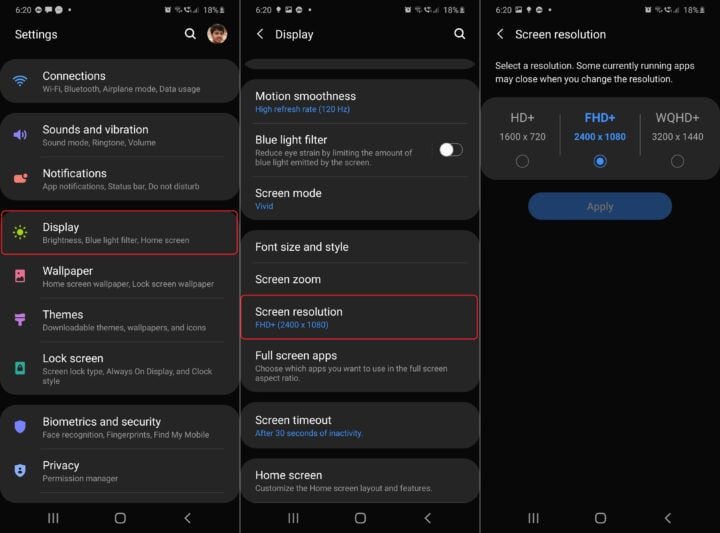
Or you can opt for longer battery life
If you think the above points through, you’ll realize that you have an interesting option at hand: you can opt for longer battery life instead of a smoother/crisper screen. Leave the resolution at FHD+ and the frequency at 60Hz, and you’ll get the maximum benefit from the hefty battery found inside your Galaxy S20. Every S20 model has a fairly large battery, but you will only benefit from its maximum potential if you don’t use the 120Hz screen mode.
And let’s be honest, a 120Hz screen is nice, but if you are not used to it, you won’t miss it either. On the other hand, longer battery life is always welcomed. Choices, choices. It’s good that we have them, so pick your favorite!
Incidentally, you can always switch between the different options, so the best tip might be: if you know that you have a long day ahead without easy access to a wall socket, choose 60Hz at FHD+. This way you have immediately extended your battery life by around 20%. That’s how big of an impact 120Hz can have on your phone’s autonomy.
More screen settings: Screen mode, Screen zoom
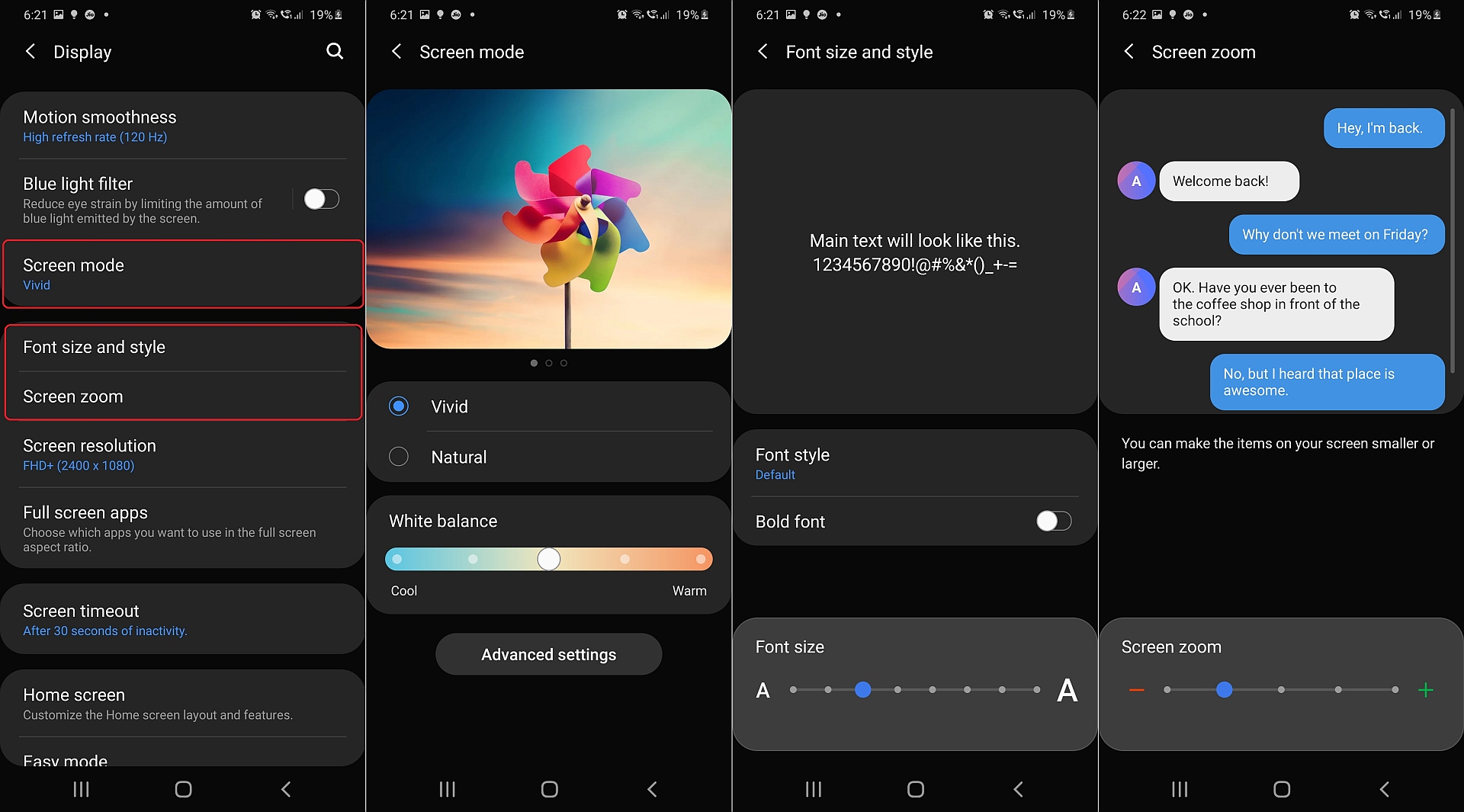
There are other display settings that may not be to your liking the first time you use your brand new flagship. Unless you really like the bright AMOLED colors that are set by default as Vivid (at least on our device), you can switch to Natural colors in the Screen mode menu.
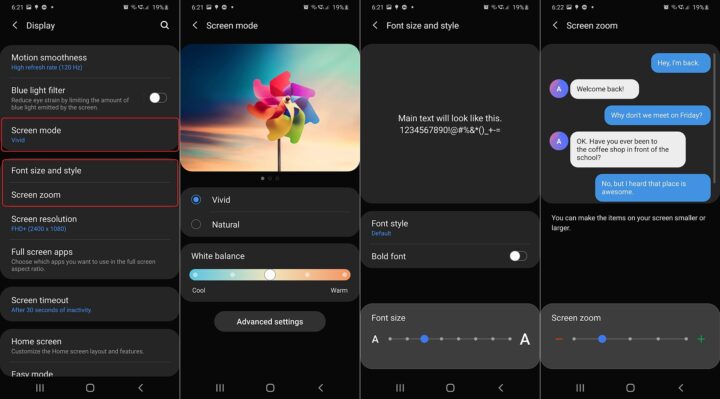
In addition — again in the Display menu — under Font size and style and Screen zoom options, you can choose how large you want the on-screen text and other content to be displayed. If you have the huge screen of the Galaxy S20 Ultra in front of you, you can take full advantage of it by making everything just a little smaller. Or, instead, you can take advantage of the large screen by making text larger and therefore more readable.
Navigation bar or gestures?
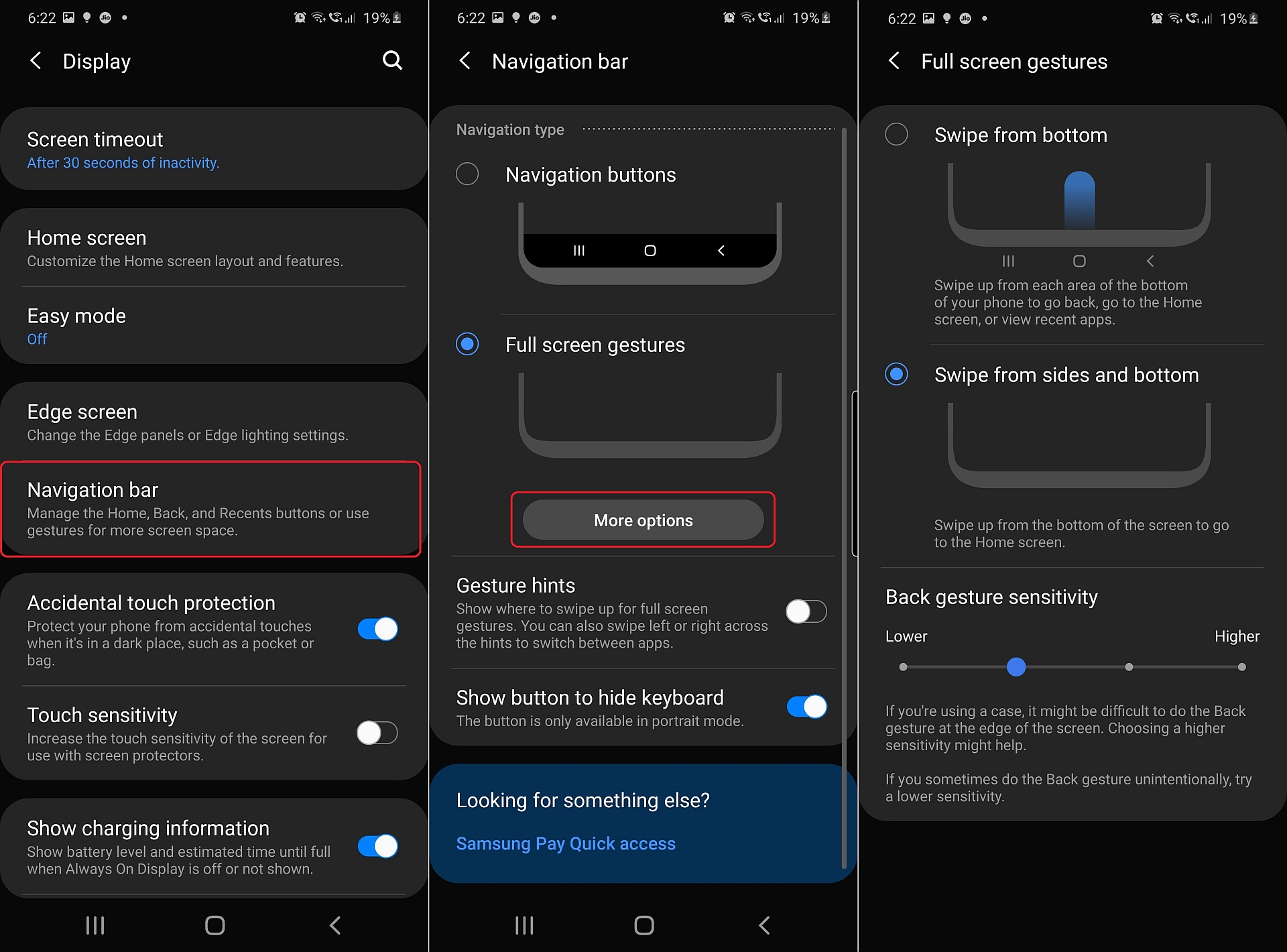
Another display setting that is only partly related to the screen itself gives you the option to choose how you want to interact with the UI: Either through a standard navigation bar or through full screen gestures. The option is found in the Settings app, in the Display menu under Navigation bar.
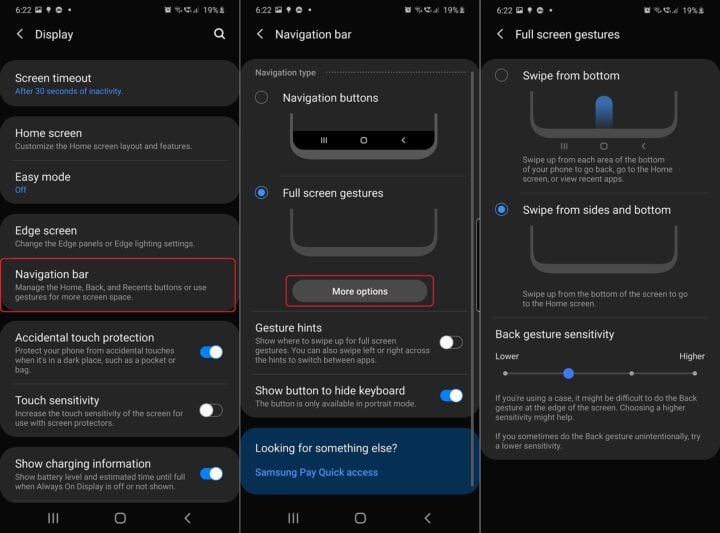
By default, the Galaxy S20 has the standard navigation bar enabled, which features the usual Recent, Home and Back software buttons. But by switching to Full screen gestures, you can perform these actions with swipes. You can determine how swiping gestures work by choosing between Swipe from bottom and Swipe from sides and bottom options. The second option works as follows:
- Home: Swipe up from the bottom edge of the screen.
- Recent: Swipe up from the bottom edge and keep your finger still on the screen.
- Back: Swipe from the side to the center of the screen.
It’s worth checking for yourself which one of these navigation options work best for you. Remember, gesture navigation has a certain learning curve, and you’ll probably need a few days before you’ll fully adjust. But one advantage of using gestures is that the navigation bar takes less screen real-estate.
Show more apps on your home screen
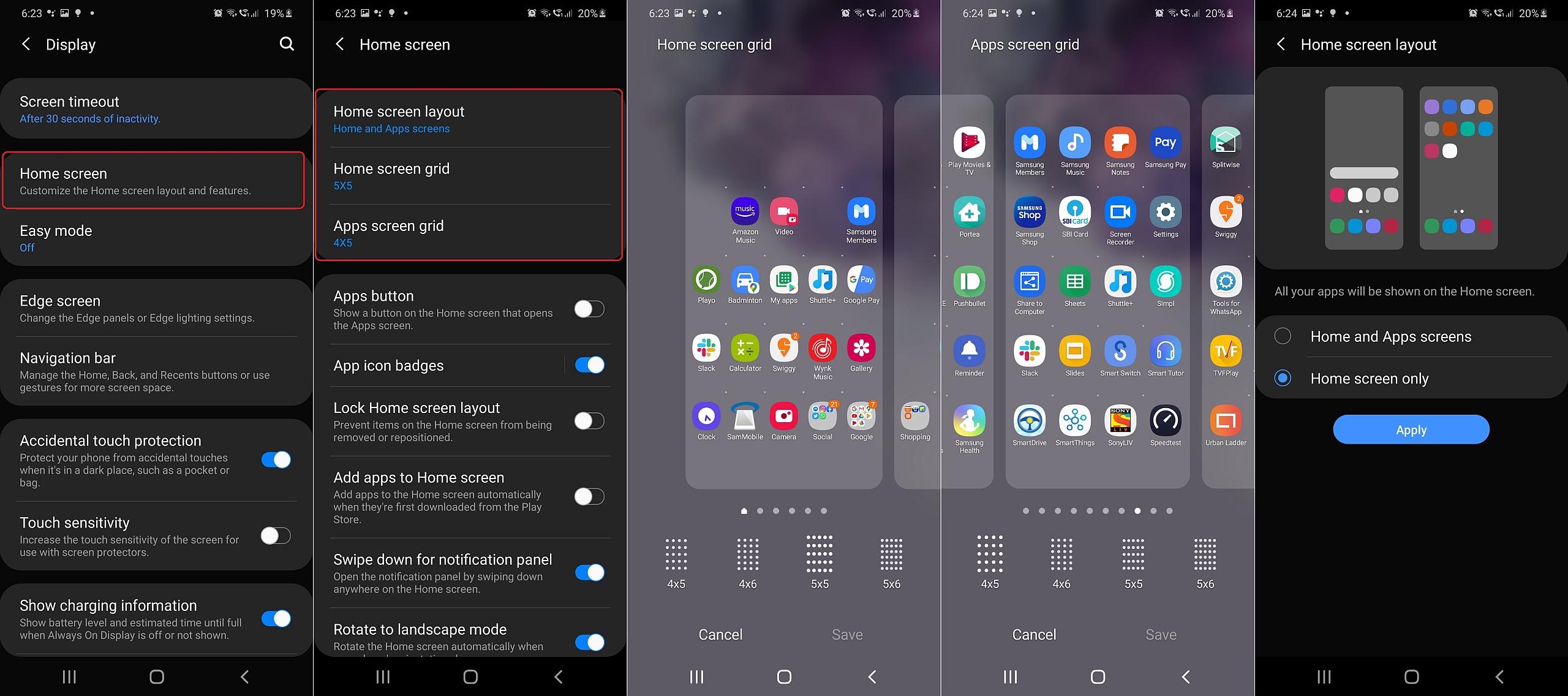
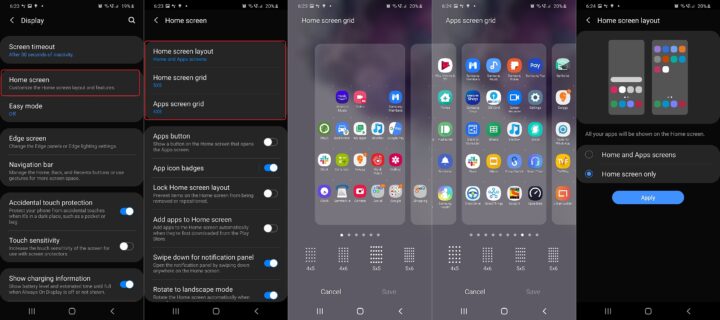
Don’t leave the Display menu just yet. There are more screen options to be found here, such as the home screen section where you can adjust how many apps you want to see on each home screen. Go to the Home Screen option in the Display menu, and choose a Home screen grid and App screen grid layout.
Furthermore, under Home screen layout, you can choose to display all of your apps on the home screen and do away with the apps drawer completely.
Show battery percentage in the status bar
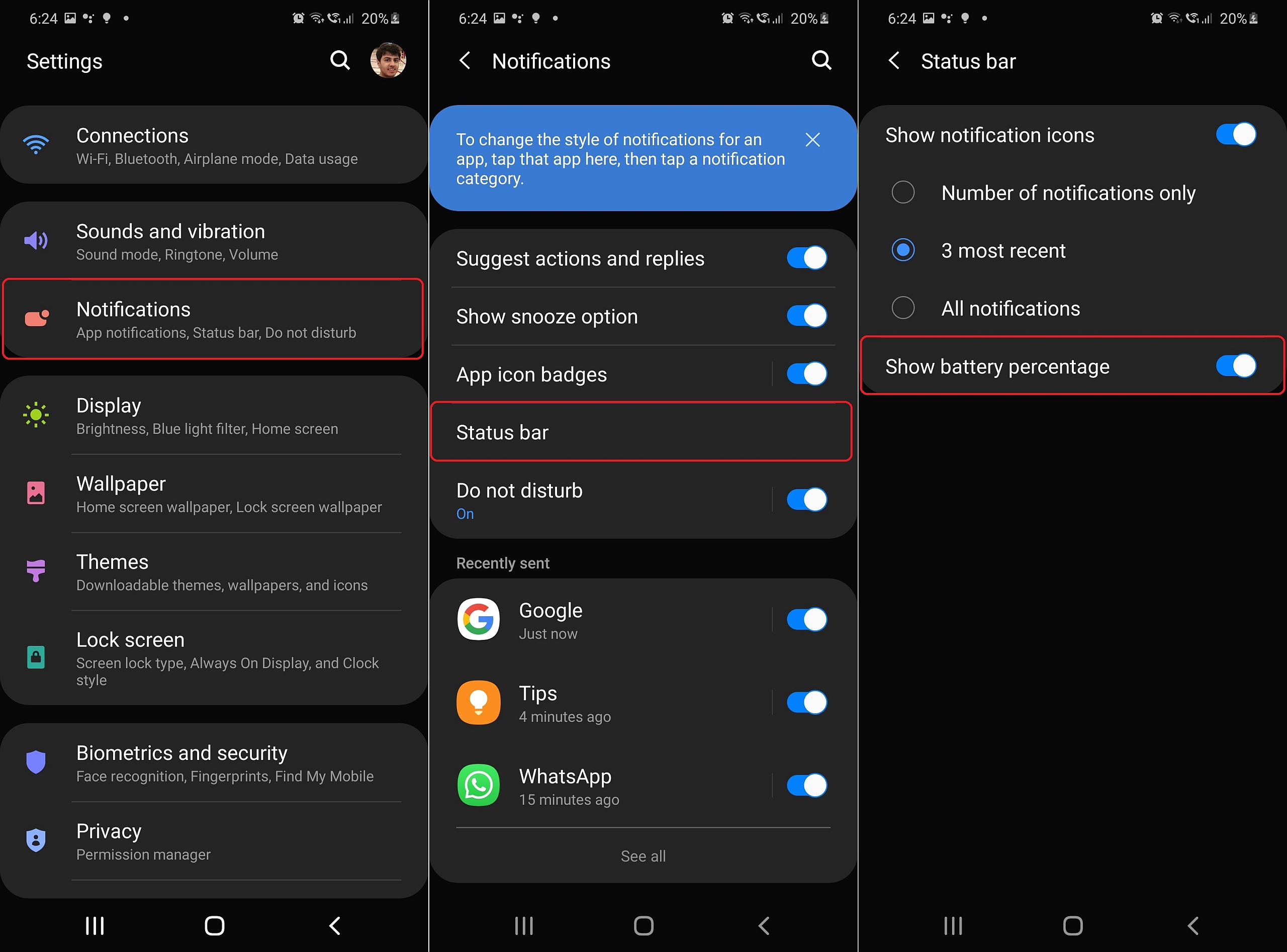
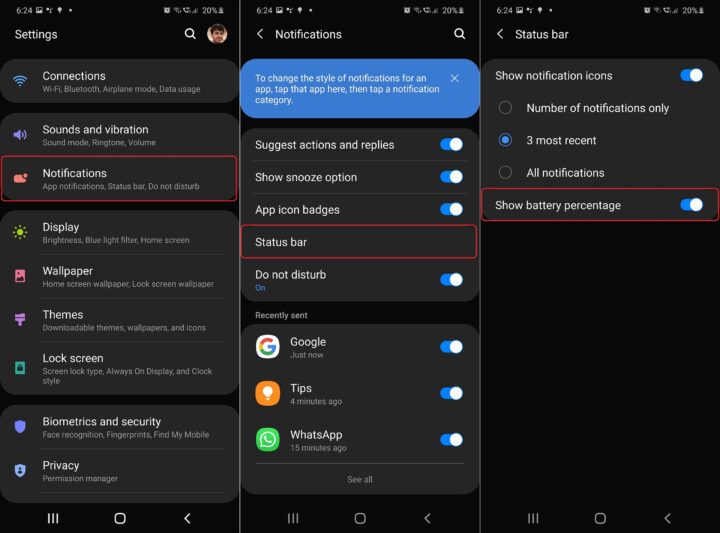
Like all Samsung phones, the Galaxy S20 series does not display the exact battery percentage in the status bar by default. Why is that so? No idea. But we do know how you can enable it.
In Settings, go to Notifications, tap Status bar and toggle the Show battery percentage switch ‘On.’
Register multiple fingerprints
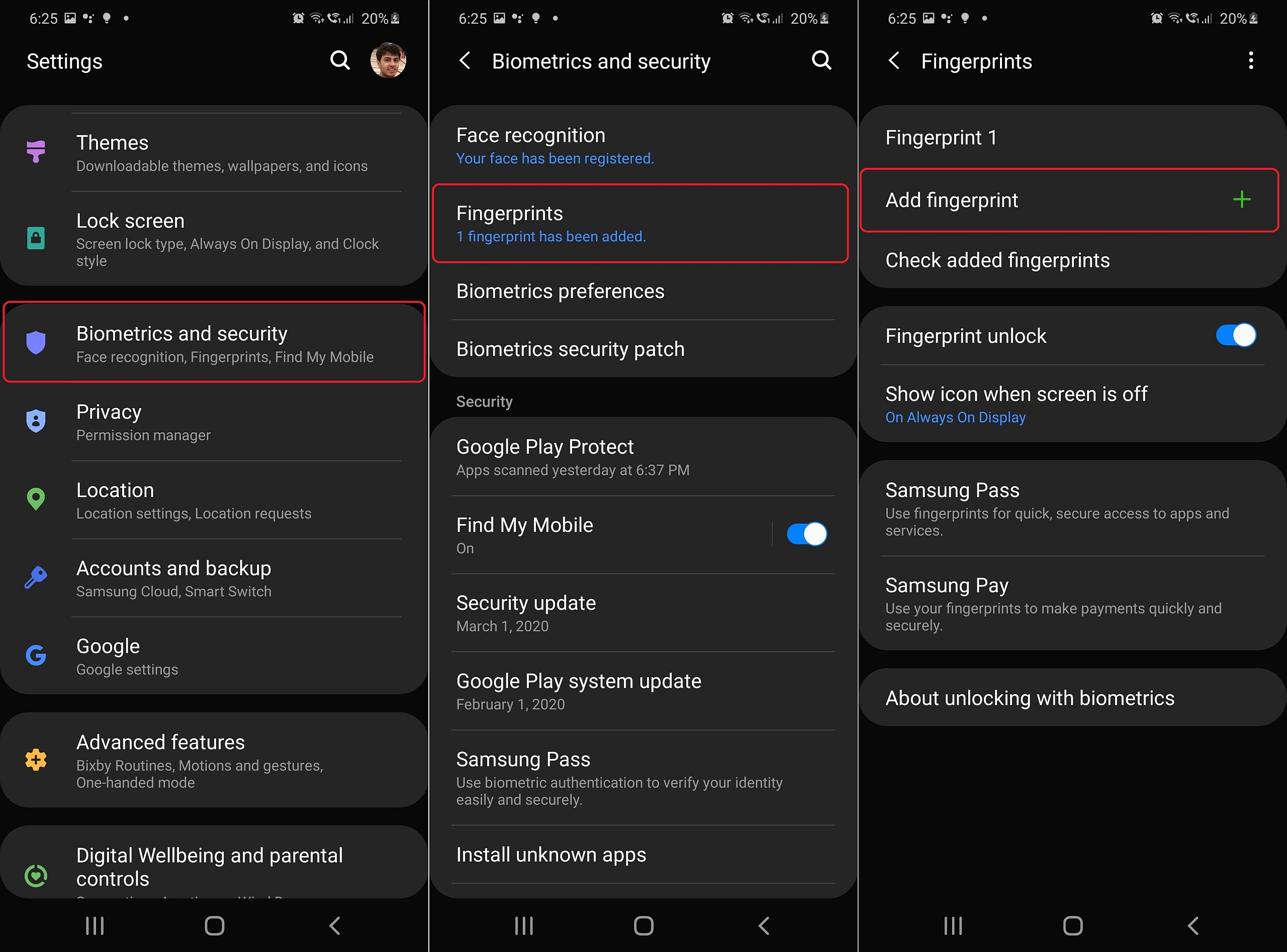
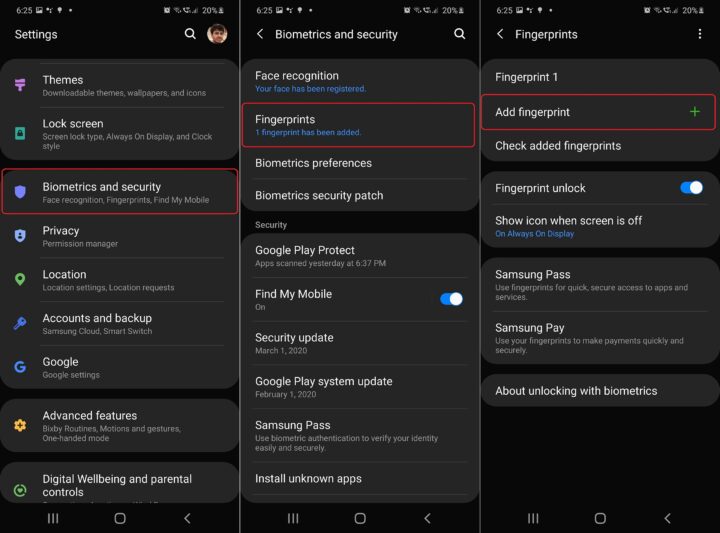
The Galaxy S20 series features an in-display fingerprint scanner, and when you first set up your device, you’ll most likely register your thumbprint and move on. But remember: you can register up to four different prints, and this can be extremely convenient. Now, the way you go about registering your fingerprints is up to you, but here are a few tips you should consider:
- You can register four different fingerprints to unlock your Galaxy S20 in as many ways as possible.
- You can register one fingerprint multiple times to maximize the chances of your fingerprint being quickly recognized by the sensor.
- Or you can do a combination of both. For example, double-capturing one thumb, and using the other two free slots for the other thumb and an index finger. This way the device recognizes the fingertip you use most often, but in case you need to unlock the device with your other hand, you can do so.
To add more fingerprints after the initial setup, go to Biometrics and security in the Settings app, then access Fingerprints and tap Add fingerprint.
Register an alternative look for facial recognition
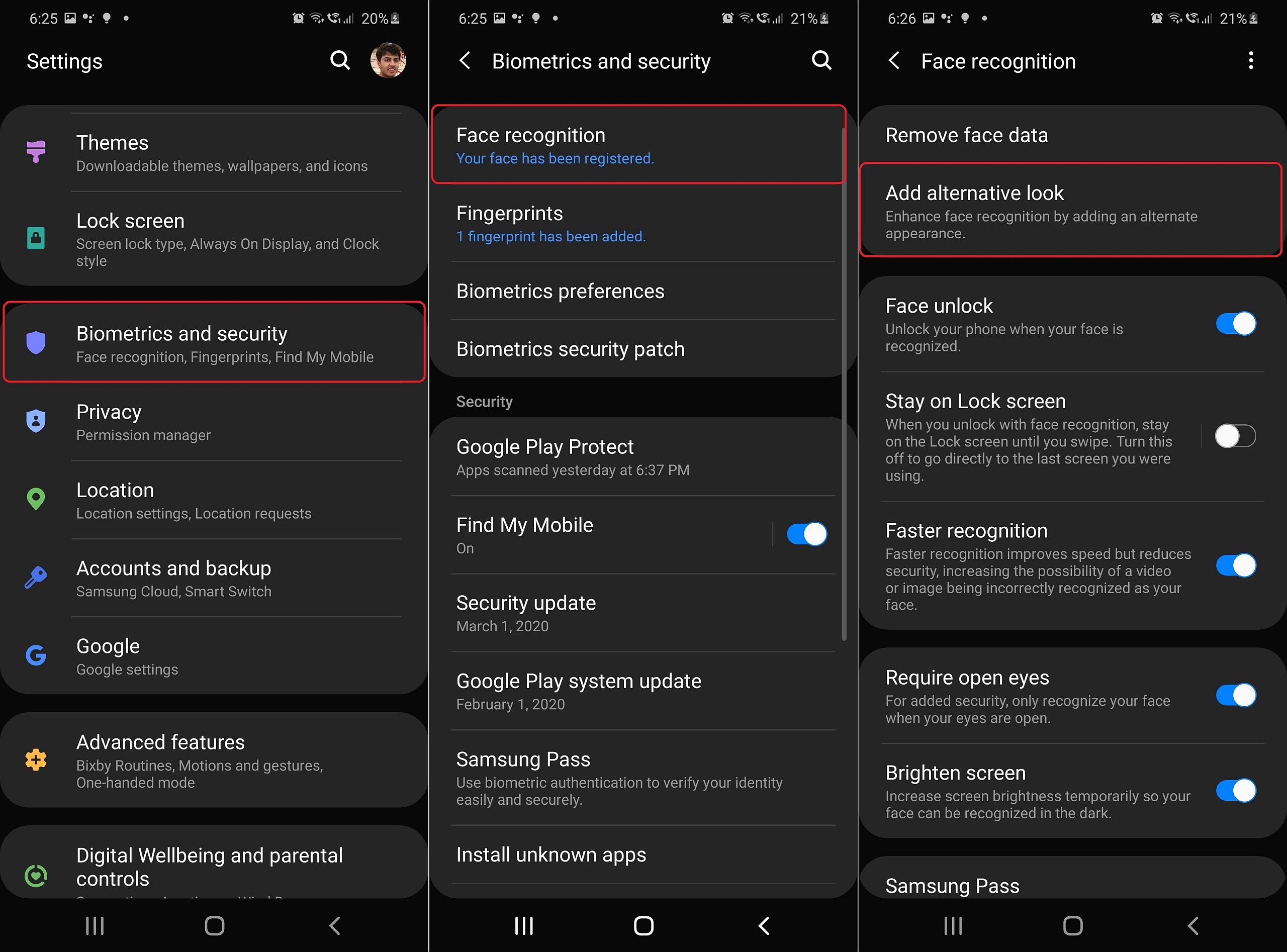
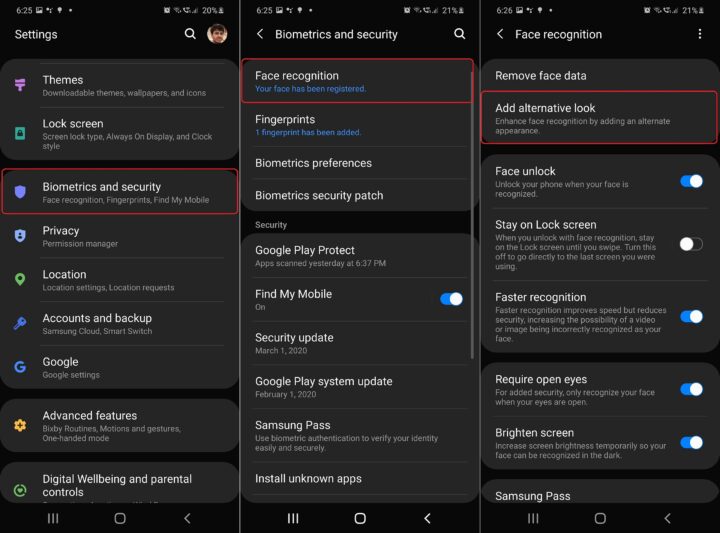
If you also use face recognition to secure your phone, Samsung has included a nice extra addition in Android 10. You can record an alternative look to enhance recognition in case you sometimes wear glasses.
Alternatively, you can use the same options to add your partner’s face so they can unlock your phone too. You have lots of possibilities to work with, so make the best of them.
Enable maximum performance
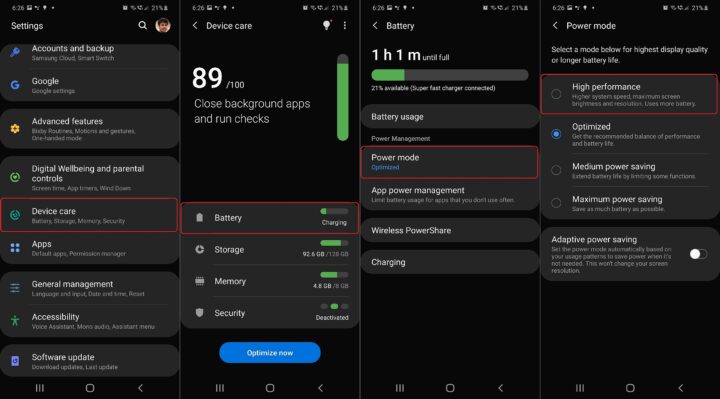
Samsung has equipped the Galaxy S20 series with the most powerful hardware available at the moment. However, by default, the phones run in an optimized mode to strike a balance between performance and battery life, which is a nice feature. But sometimes you might want to use all of that power at its maximum potential without any regard to energy consumption.
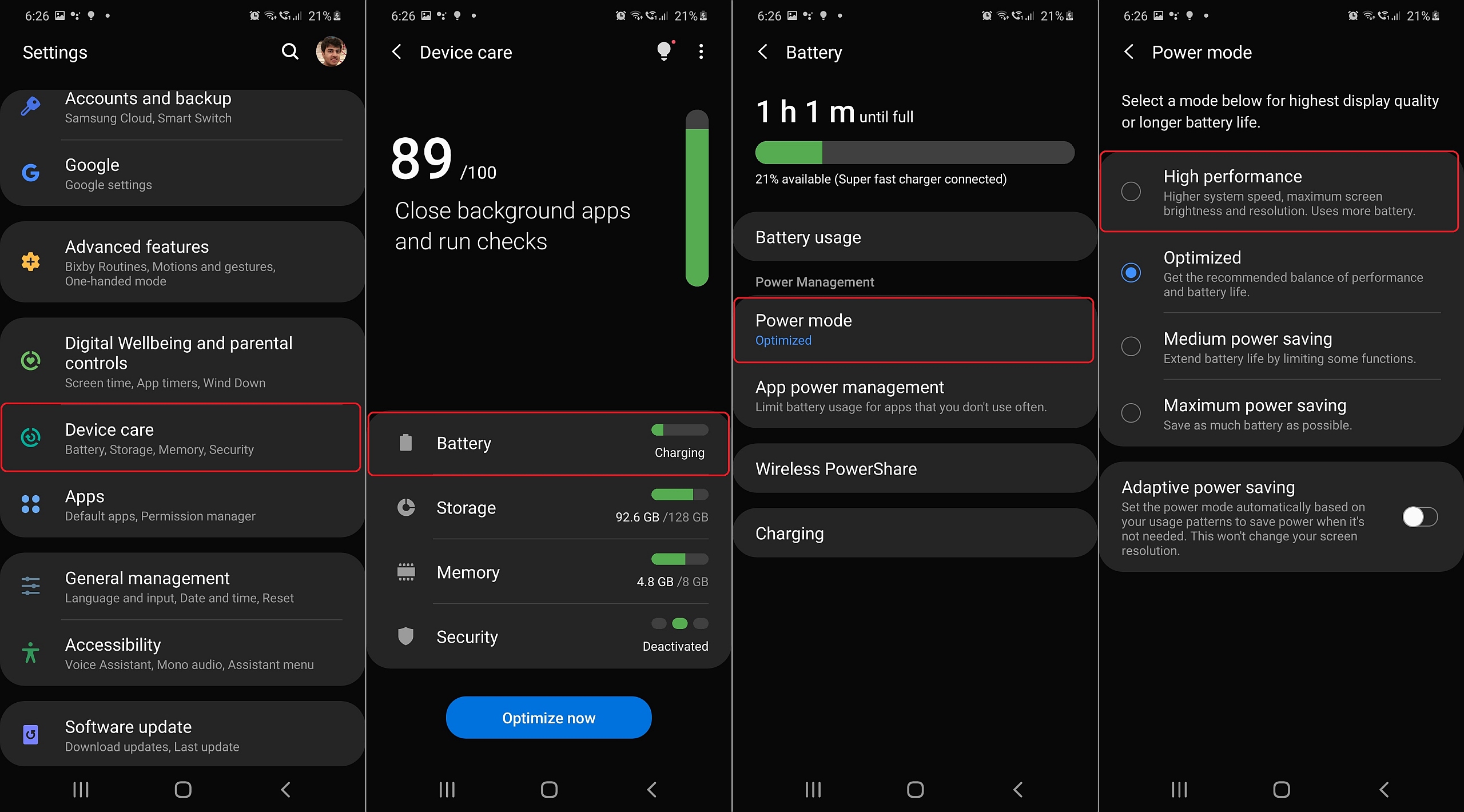
If so, you can open Settings, go to Device care and choose Battery. Then tap Power mode, and here you will notice that the Galaxy S20 is set to Optimized by default. But you’re in search of more power, so nothing’s stopping you from switching to High performance. Various limitations are lifted in high performance mode, allowing the processor to run at higher clock speeds, further increasing screen brightness, and not limiting power consumption. You can weigh the pros and cons of the high performance mode for yourself, but it’s there if you ever need it.
Camera: Turn off Scene optimizer
The different camera configurations employed by the Galaxy S20 series demand their separate story – a story for a future overview including camera tips & tricks. But for now, here are a couple of points that ought to be highlighted.
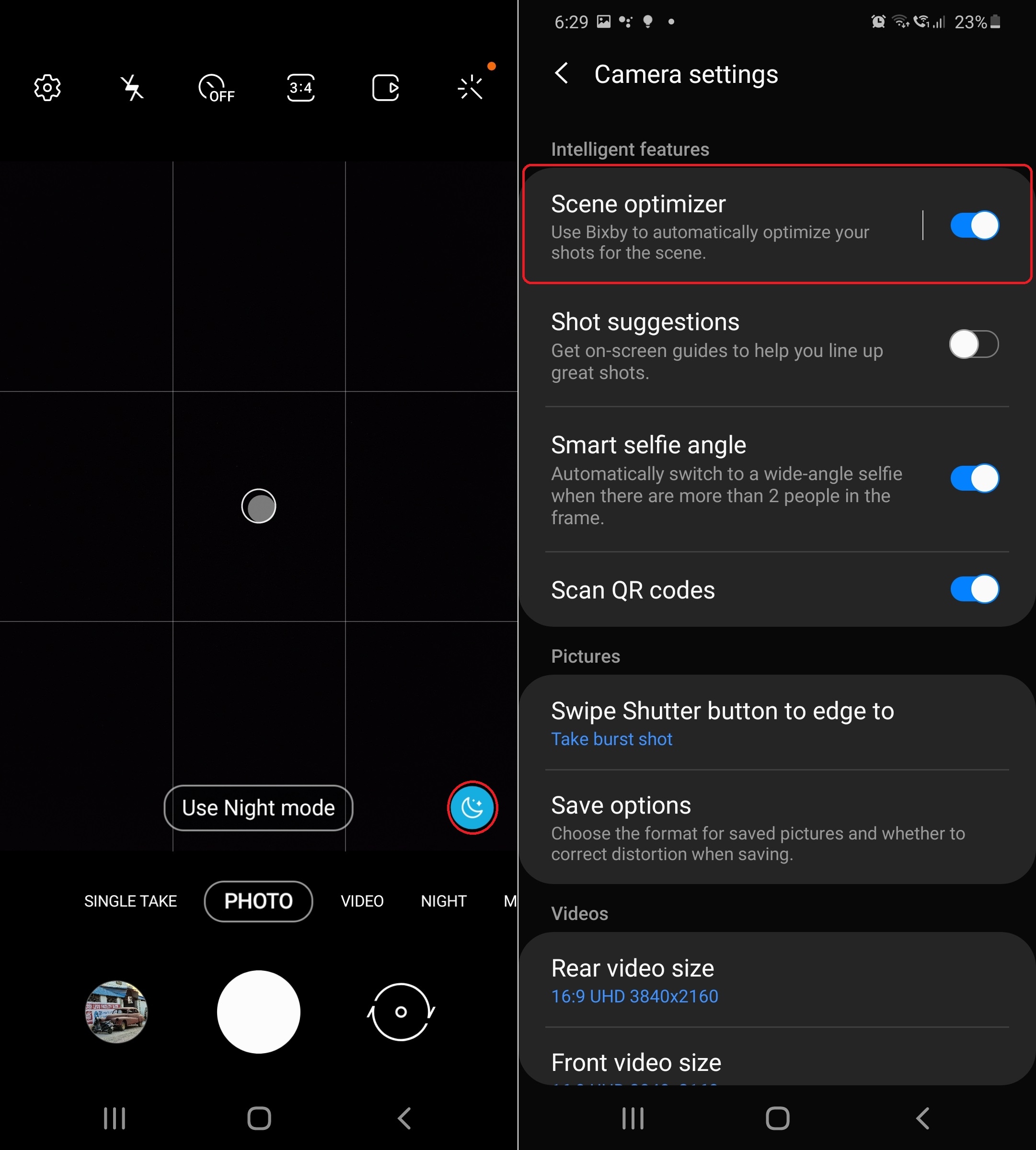
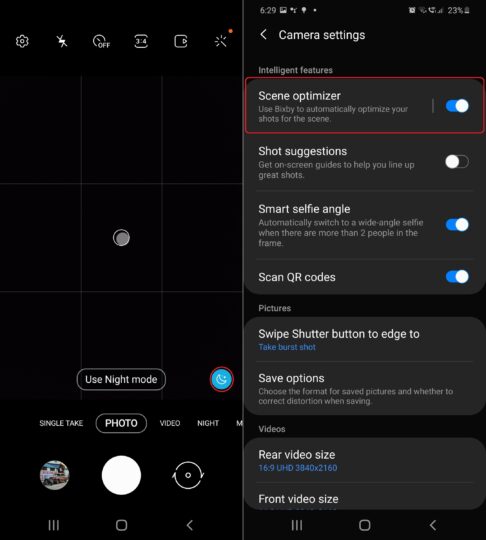
For starters, the Galaxy S20 camera has Samsung’s Scene optimizer feature enabled by default. However, taking pictures with this feature turned on can slow things down, and it’s not always a guarantee that the scene optimizer produces great results. With that in mind, you can make the camera app faster by turning this feature off.
You can quickly turn off or turn on Scene optimizer by tapping the blue icon you see above the shutter button in the viewfinder. To disable the feature completely, tap the ‘gear’ icon in the camera viewfinder to open the camera’s settings and tap the Scene optimizer toggle ‘Off.’
But what about Document scan?
There is one caveat we’d like to mention in regard to disabling Scene optimizer. By disabling this feature, you also automatically disable one very useful feature, namely Document scan. With this feature enabled, the camera leverages AI to recognizes text and documents as soon as you point the camera at them. Once the yellow frame appears around the document you can choose to ‘scan’ it instead of photographing it. The device automatically crops everything outside the document and automatically ‘straightens’ it.
Simply put, this can be a very useful feature, so ask yourself this: do you rarely (or never) take photos of documents? Then you might want to leave Scene optimizer turned off. Do you photograph documents regularly? Then consider leaving the function on. The convenience may outweigh the somewhat slower camera (especially in low-light shots).
Enabling Smart selfie angle
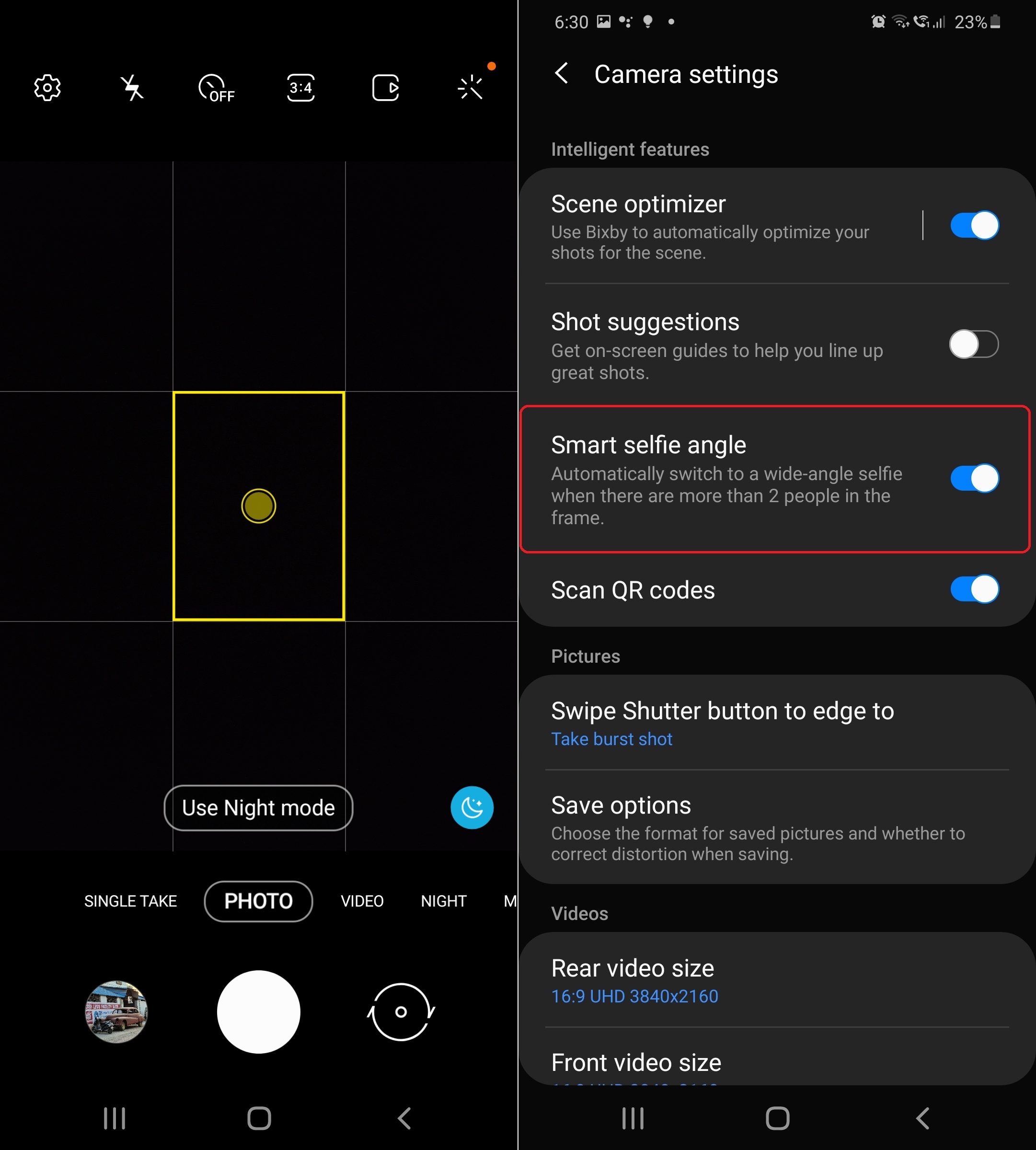
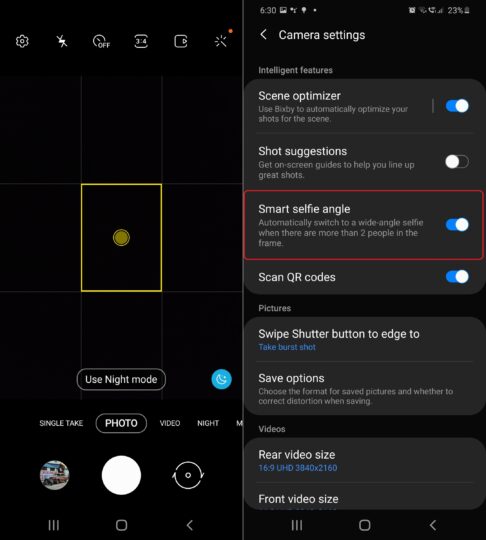
In the Camera settings, there is another function that, as far as we know, is sometimes – but not always – activated by default. It’s a new addition to the Galaxy S20 series and it’s called Smart selfie angle.
When enabled, Smart selfie angle automatically switches between the two ‘lens modes’ available for your selfie camera, i.e., normal selfie and wide-angle selfie. With Smart selfie angle on, you will notice that your Galaxy S20 automatically switches to the wide-angle lens whenever it detects more than two people in the frame.
With the Galaxy S20, you no longer need to manually select this mode in situations when you want to take a group selfie. This is not the case with other Samsung flagships, but the Galaxy S20 recognizes the problem and tackles it with the addition of Smart selfie angle. Hopefully, it will come to other Galaxy flagships as well through a software update.
To enable Smart selfie angle, open the Camera app and tap the gear icon to open camera settings, and switch the Smart selfie angle switch on.
8K video recording? You need to enable that manually
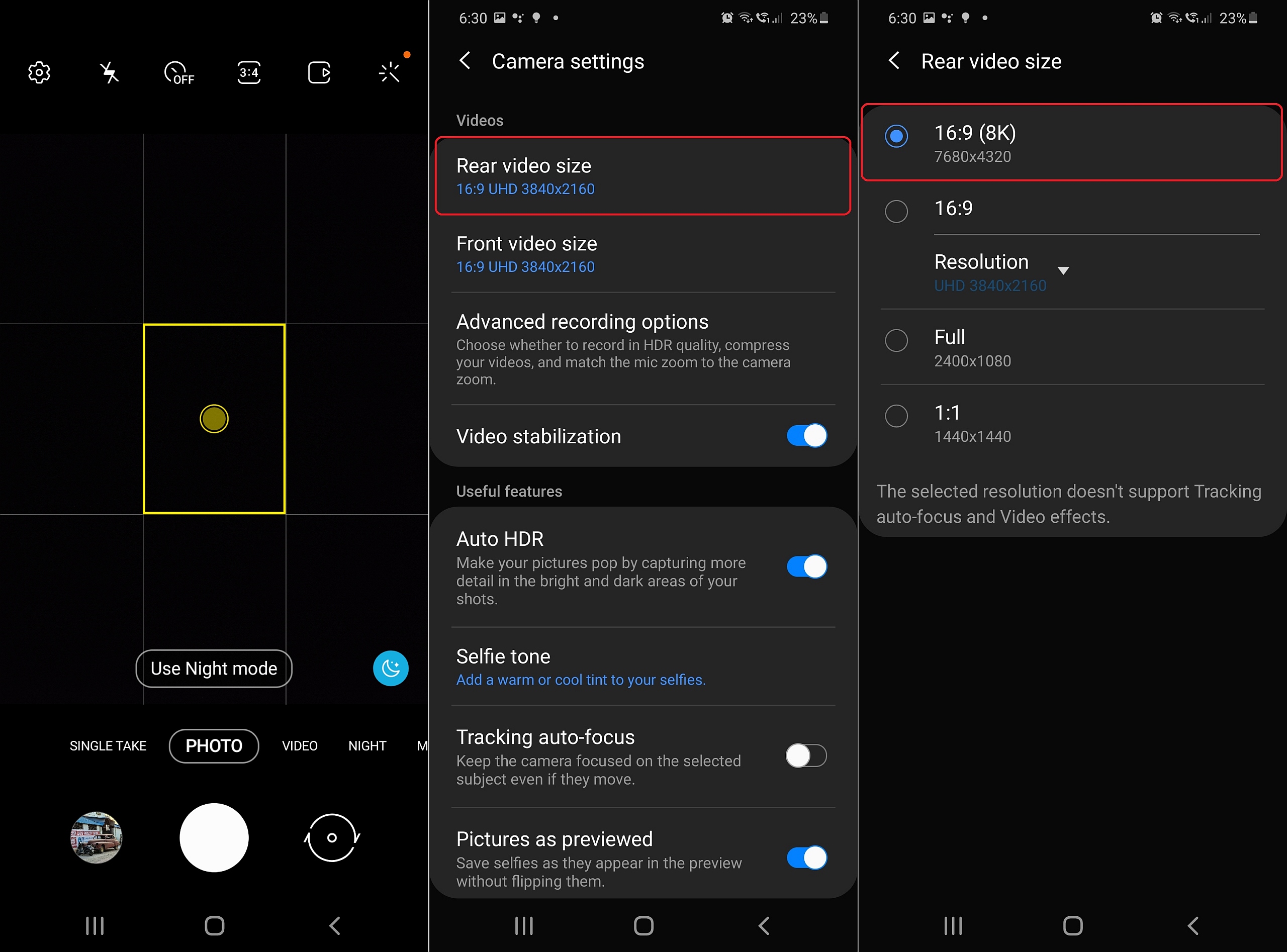
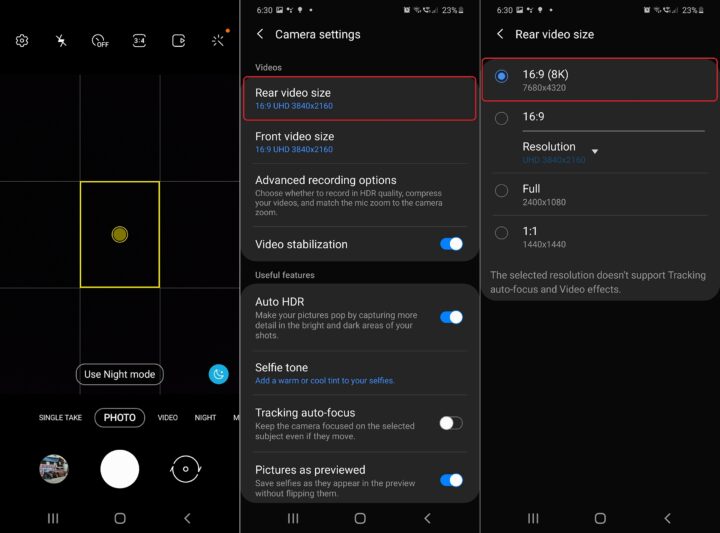
The Galaxy S20 series might be capable of recording videos at mind-boggling 8K resolution, but like every other Galaxy smartphone, the S20, S20+ and S20 Ultra are set to capture videos at Full HD resolution out of the box. So if you want to record 8K videos, you will need to manually set that resolution in the camera settings.
To do that, open the Camera app’s settings and, under the Videos section, tap Rear video size and select 16:9 (8K), which is the option at the very top of the list. All your videos will now be recorded at 8K resolution. However, you should keep in mind that 8K videos take up a lot of storage space and can also considerably heat up the phone, so you might want to stick to recording 60 fps 4K videos instead for a good compromise between video quality and storage required.
To set the phone to record 4K videos, simply go to the Rear video size menu in the Camera settings again, tap 16:9, then select UHD (60 fps) 3840×2160 from the Resolution dropdown.
Customizing the Side key
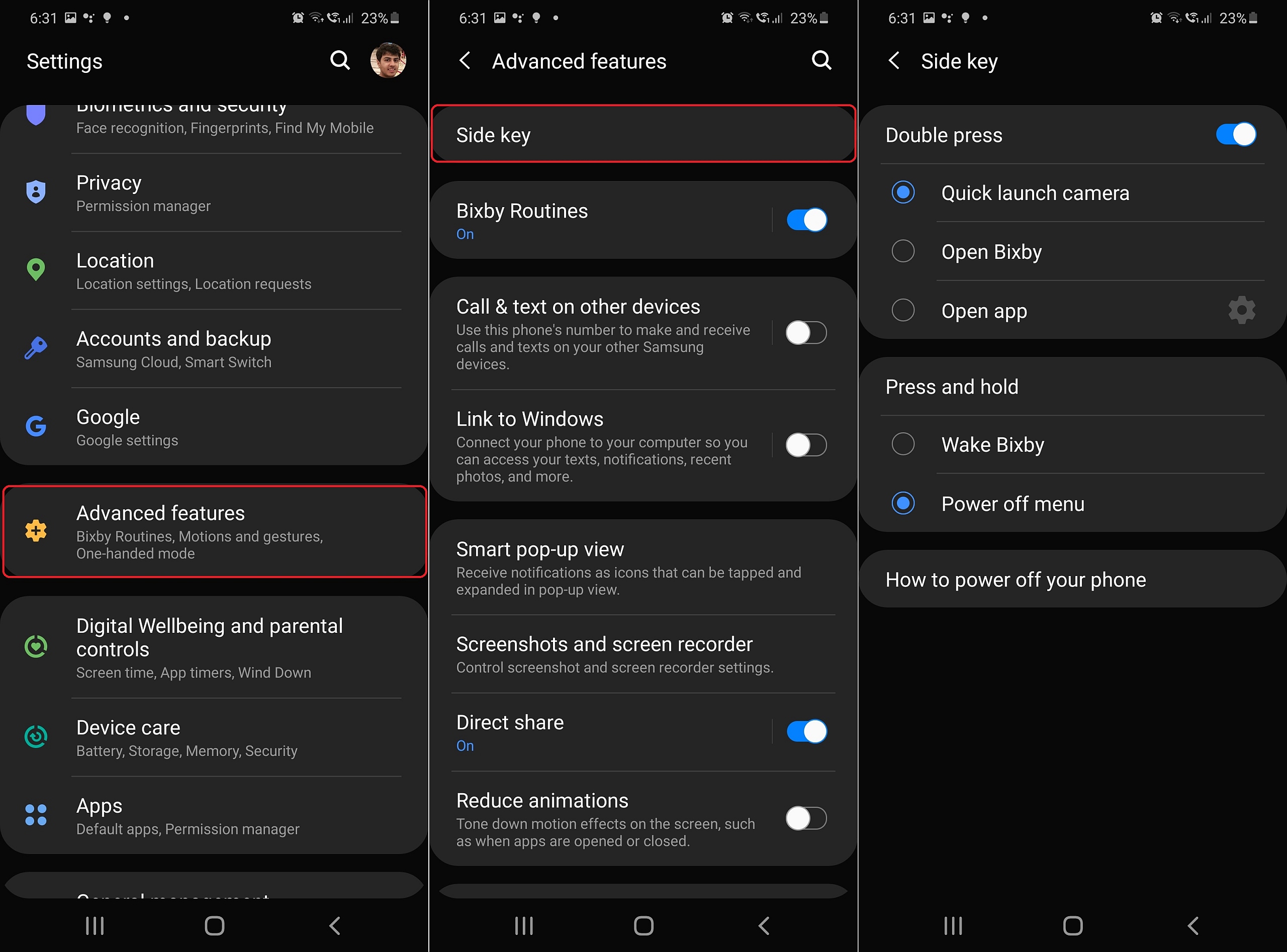
The side key (On/Off) button on the Galaxy S20 has a few different functions you can choose from for double-pressing or pressing and holding the button.
To set a different function for it, open Settings, go to Advanced features and tap Side key. You can now choose what happens when you double-press the side key, such as quick-launching the camera, launching Bixby, or even better: select an app of your own choice to launch when performing this command. Do you always want to have WhatsApp at hand? This is one easy way to do it.
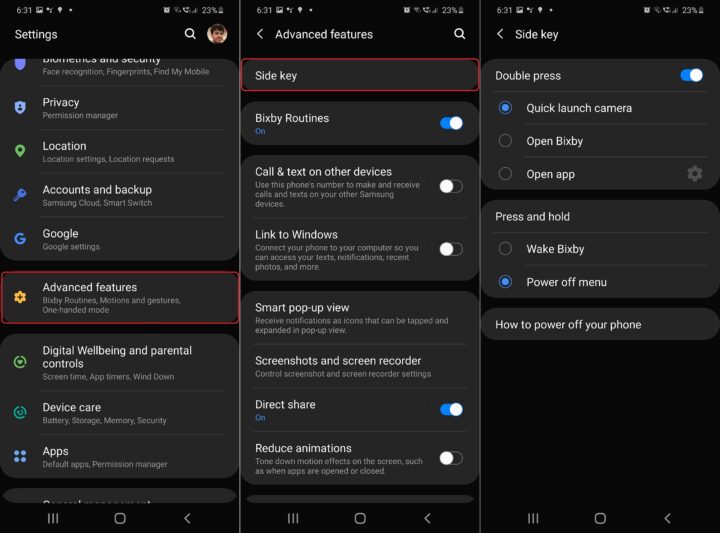
You can also determine what happens when you press and hold the Side key for longer. Wake Bixby is activated by default, but this means that you cannot switch off your Galaxy S20 using the physical button. If you’d rather have that option instead of Wake Bixby, enable the Power off menu option instead.
Lastly, here are just a few quick Galaxy S20 tips to consider:
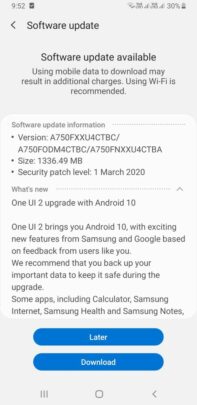
- Install the first Galaxy S20 update, which is already available. From Settings, go to Software update and tap Download and install.
- Accidental touch protection: the bezels of the Galaxy S20 are so thin that you might trigger this touch protection feature far too often. If you’re bothered by it, open Settings, go to Display and disable Accidental touch protection.
- If you did not change the function of the Side key as explained above, you can turn off the Galaxy S20 by tapping the virtual power button located in the quick toggle area (in the notification shade) next to the Settings gear.
- Dark mode: Many apps support this feature now, and you can easily enable it from the quick toggle area. You can even set a schedule for Dark mode, or set it to turn on automatically based on your local time.
- And last but not least: don’t forget to check the tips & tricks provided by Samsung on your own device. Open Settings, scroll all the way down, and tap Tips and user manual.
Stay tuned for more Galaxy S20 tips and tricks
Our preliminary list of tips and tricks for the Galaxy S20 series concludes here, but there will be more of them coming your way soon. Hopefully, you now have enough information to get started with personalizing your new flagship and user experience. Of course, there are other tips & tricks that have not been mentioned here, so stay tuned for more.
Until then, join us in the comment section and let us know what are your favorite personalization options for the Galaxy S20 series. Likewise, do you own – or plan to buy – the Galaxy S20, S20+, or S20 Ultra?
The post The best quick tips and tricks for your brand new Galaxy S20 appeared first on SamMobile.
from SamMobile https://ift.tt/39Q6ASo
via
IFTTT