الثلاثاء، 20 مارس 2018

How to disable Bixby on the Galaxy S9 completely

Look no further than this guide if you want to learn how to disable Bixby on Galaxy S9 and other compatible handsets like the Galaxy S8 and the Galaxy Note 8. Samsung’s virtual assistant has its pros but many users simply don’t feel the need to use it particularly if they heavily rely on Google services because in that case, it’s really hard to beat Assistant which is deeply integrated with the company’s services and smart home devices.

Many just want to find out how to disable Bixby on Galaxy S9 because they can’t stand the fact that their new device has a physical button for a feature they don’t want to use. This was particularly frustrating for Galaxy S8 owners soon after the device was released last year because Samsung didn’t allow them to remap the button and didn’t even make it possible for the button to be disabled even though it gets in the way and the accidental presses drive users nuts.

This comprehensive guide will teach you how to disable Bixby on Galaxy S9, Galaxy S8 and Galaxy Note 8 completely.

How to disable Bixby on Galaxy S9 completely

Disable the physical Bixby button
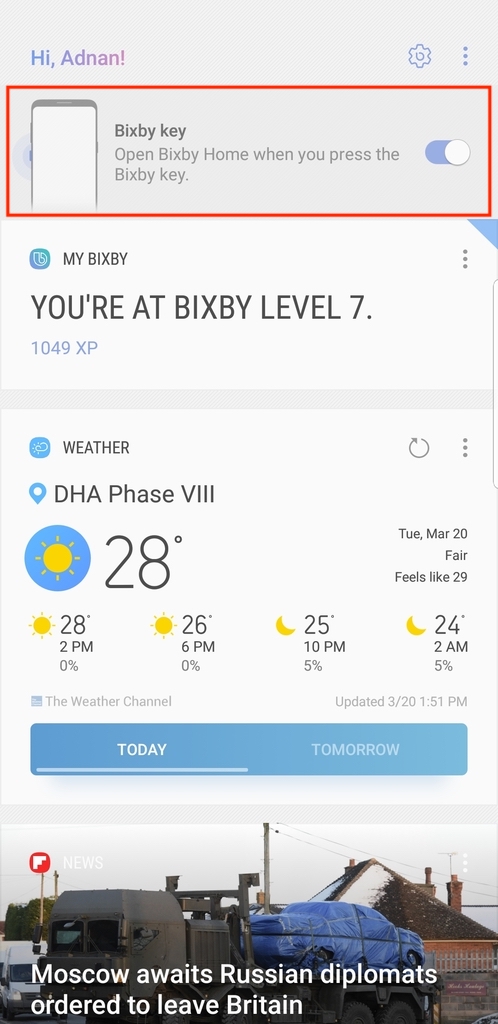
How to disable Bixby on Galaxy S9

After many complaints from Galaxy S8 owners, Samsung finally decided to let users disable the physical Bixby button last year. The process is simple enough. Hit the key to launch Bixby and tap on the gear icon at the top. A toggle will appear. Turn it off and you’re good to go. It’s a shame that this renders a perfectly usable button on the device useless and you can’t use it for any other purpose.

Disable voice wakeup

As you might be aware, the button isn’t the only way you can summon Bixby. The method detailed above merely disables the button but since you’re here to learn how to disable Bixby on Galaxy S9 completely, you’ll also want to know the procedure to disable voice wakeup. To do that, swipe over to the left of your home screen to launch Bixby. Tap on the three-dot hamburger menu at the top and open the settings menu to locate the Bixby Voice toggle. Once you turn it off Bixby will not come up no matter how many times you say the “Hi, Bixby” hotword.

Disable Bixby Home
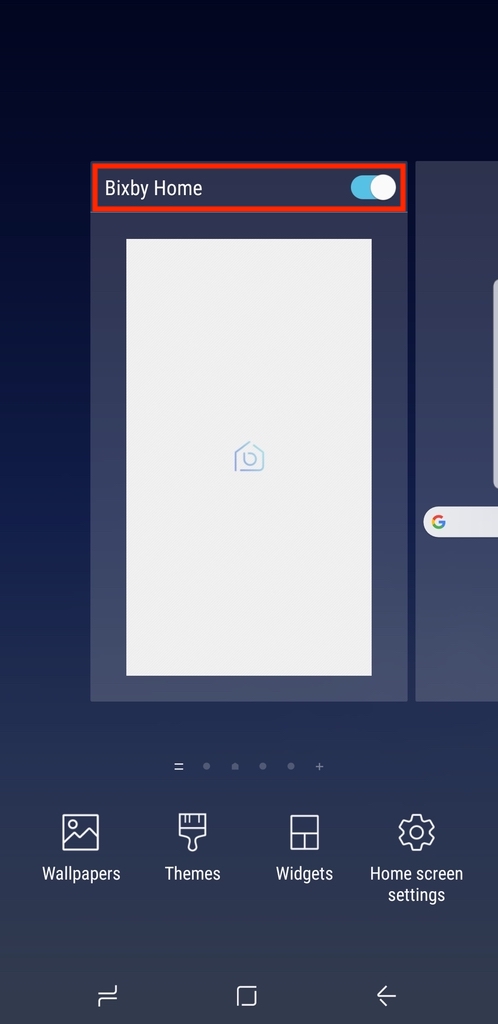
Since this is a guide about how to disable Bixby on Galaxy S9 completely, we’re not quite done. You’ll also want to do away with Bixby Home, the side of Samsung’s assistant that surfaces contextual information, that you can access by swiping to the left of your home screen. To disable Bixby Home just tap and hold on any empty section of your home screen and then keep swiping to the right to reach the last panel on the left. Here, you’ll find the toggle to turn Bixby Home on and off.

Why you shouldn’t rule out Bixby just yet

So now you know how to disable Bixby on Galaxy S9, Galaxy S8 and Galaxy Note 8 but allow me to play the devil’s advocate here for a second. Bixby is still in its infancy when compared to other assistants like Siri, Cortana, Alexa and Google Assistant. Bixby 2.0 is going to bring substantial improvements for Samsung’s assistant and make it a lot easier to give continuous voice commands.

Moreover, Samsung is rapidly expanding Bixby to other devices like TVs and smart home appliances to create a wider ecosystem. Samsung is also working on a Bixby-powered smart speaker that will double as a hub for smart home devices. There’s a lot more to be expected from Bixby down the line so let us not dismiss it entirely just yet.

The post How to disable Bixby on the Galaxy S9 completely appeared first on SamMobile.


from SamMobile http://ift.tt/2FWN9bR
via IFTTT
[Poll] Why are you not buying the Galaxy S9?

The Galaxy S9 has polarized the Samsung faithful. Some rushed to pre-order Galaxy S9 as soon as it was possible while others (Galaxy S8 owners in particular) have been debating the need to spend north of $700 on a device that looks like the one from last year and offers features that may not be used frequently once the novelty wears off.

It was reported yesterday that the Galaxy S9 is proving to be a tough sell for Samsung in its home country of South Korea. Customers aren’t that enthusiastic about the new flagship as it doesn’t bring any major changes and it’s actually the Galaxy A8 (2018) that’s proven to be a hit there as customers appreciate the revamped iteration of Samsung’s premium mid-range device more.

We have seen many comments from our readers as well which suggest that they have decided to not purchase the Galaxy S9 as they can’t justify the cost of a new flagship device merely for camera improvements and features like AR Emoji and Super Slow-motion video. The case is certainly different from customers looking to upgrade from the Galaxy S7 or an earlier device but not for those who already own the Galaxy S8 or Galaxy S8+. Samsung has tried to appease those customers by offering generous trade-in values for existing devices but this is limited to select markets only.

If you’re a Galaxy S8 owner or just a Samsung fan that’s not impressed by the new flagship, we’d like to know why you have decided to not buy the Galaxy S9. Is it because the device doesn’t provide enough value for money or would you rather just wait and see what Samsung does for its 10th anniversary Galaxy handset next year? Vote below and let us know your thoughts on the matter in the comments section.

Why are you not buying the Galaxy S9?

The post [Poll] Why are you not buying the Galaxy S9? appeared first on SamMobile.


from SamMobile http://ift.tt/2u3EEtL
via IFTTT

الاثنين، 19 مارس 2018

Galaxy S8 and Galaxy S8+ receive Android Oreo in Canada

Samsung launched the Android 8.0 Oreo beta program last year. Since then, the Galaxy S8 and Galaxy S8+ users around the world have been eagerly waiting for the rollout of the Android Oreo update.

In February, Samsung finally started rolling out the update in Turkey, Norway, the UAE, India, Belgium, Germany, France, Poland, etc., but then halted it only to resume a week later after sorting out user-reported update issues. In the last week or so, the update has been pushed out aggressively in more markets and by most top carriers in North America.

Canada gets a taste of Oreo

After Verizon, T-Mobile, and Sprint in the US, now telecom carriers in Canada are rolling out the Android Oreo update for the Galaxy S8 and Galaxy S8+. Currently, Rogers, Videotron, Bell, Telus, Virgin Mobile, Fido, and Freedom Mobile customers in Canada are receiving the update on their devices.

Since the update is already rolling out in many other markets and no major issues have been reported so far, it shouldn’t be a risky proposition to update your Galaxy S8 and S8+ immediately as and when the update is available. If you would like to know the new features and improvements the Oreo update brings to your Galaxy S8, do read our exhaustive What’s New with Android 8.0 Oreo series.

Galaxy S8 and Galaxy S8+ owners in Canada can try manually pulling the update by going to the Software update menu in the Settings app if they have yet to receive the over-the-air update notification which should arrive sooner rather than later now.

Do let us know in the comments section about your experience with the new update so far.

The post Galaxy S8 and Galaxy S8+ receive Android Oreo in Canada appeared first on SamMobile.


from SamMobile http://ift.tt/2polvNE
via IFTTT

Galaxy S9 drop test shows improvement despite shattering on first drop

Even though Samsung’s Galaxy S9 and Galaxy S9+ mostly retain the design language of their predecessors, the company has made many improvements inside and outside the devices. Improved durability is one such area where the new series is better than its predecessor according to Samsung.

To achieve this, Samsung has put a 20% thicker Gorilla Glass 5 on the front of the Galaxy S9 and S9+ at 0.6T, compared to Galaxy S8’s 0.5T. Samsung has also used the AL 7003 high-strength aluminum on the S9 which doesn’t deform as much as the AL 6013 used on the Galaxy S8. With these and many other minor improvements, the S9 and S9+ are supposed to be more durable than the previous Samsung flagship phones.

Galaxy S9 also beats iPhone X in durability

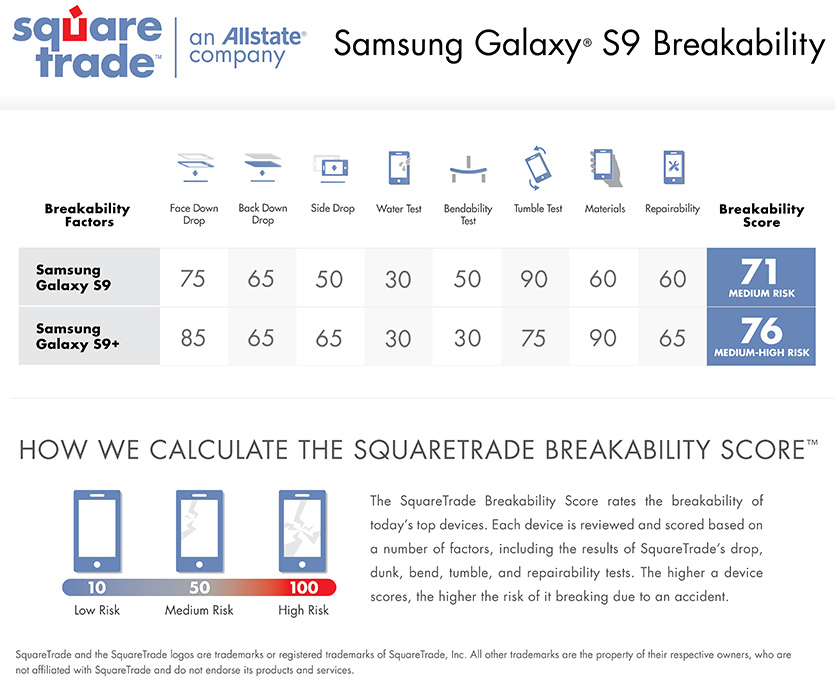
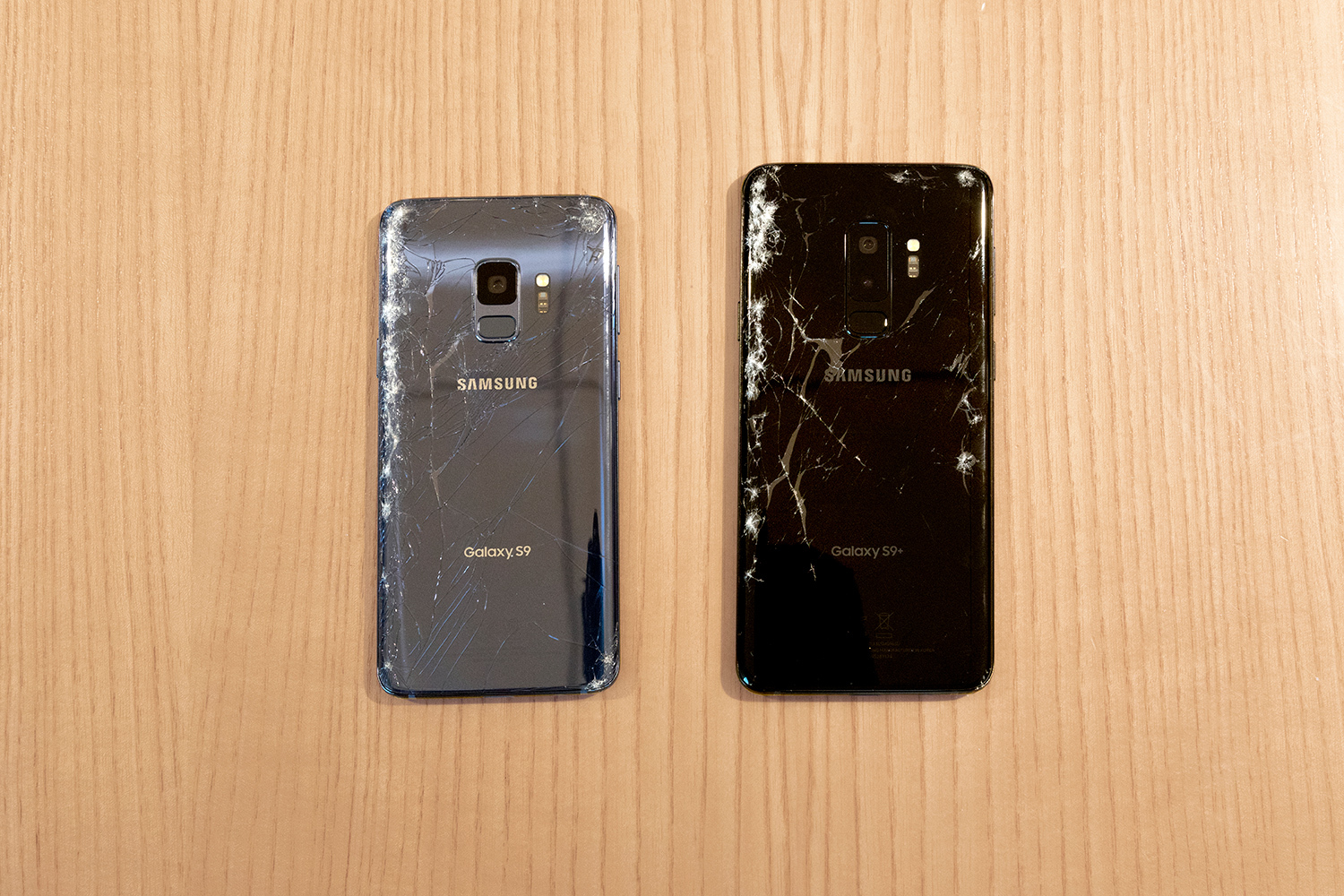
SquareTrade has put Samsung’s claims about Galaxy S9’s durability to test, and they come out as mostly true. SquareTrade used drop machines to drop the Galaxy S9 and S9+ from 6 feet high on the front, back, and sides of the devices to test their durability. Though the Samsung’s latest flagship phones fared better than their predecessors, they still cracked and shattered at first drop. SquareTrade also conducted a tumble test and bend test, a test which has become rather common after Apple’s infamous bendgate, and the results are largely on expected lines. While the Galaxy S9 and S9+ do better than the previous flagship models, they are far from indestructible.

Based on these and many more tests, SquareTrade has awarded Breakability Scores of 71 for the Galaxy S9 and 76 for the Galaxy S9+, placing them in Medium Risk and Medium-High Risk categories respectively. The new flagships not only did better than their predecessors but also fared better than the iPhone X, which should give Samsung fans some internet bragging rights.

While the new flagship phones are more durable than last year’s models, they still shatter when dropped, and so it is advisable to use a case or a cover if you’re clumsy with your phone. You might even want to consider the best Galaxy S9 screen protectors available now. Hopefully, durability becomes the next big trend now that the war on bezels is finally nearing completion.

The post Galaxy S9 drop test shows improvement despite shattering on first drop appeared first on SamMobile.


from SamMobile http://ift.tt/2DEO2DN
via IFTTT

What’s New With Android 8.0 Oreo Part 16: Recent apps screen now supports list view

The current iteration of Android’s standard recent apps screen – officially called the Recents or Overview screen – that lets you switch between recently used apps looks quite neat, but it’s also rather limited when it comes to how many recently used apps it can display at a time. On Samsung devices, you can only see a thumbnail of the most recent app in the Recents screen and the names of the second and third-most recent apps.

For the rest, you have to flip through the list of apps until you find the app you’re looking for, and while you can double tap the Recents key (the one other than the home and back buttons on a Samsung/Android device) to quickly jump between the last two apps, it can be a chore when you want to go to an app that is higher up in the recent apps list. Samsung, however, has found a solution to the problem with Android 8.0 Oreo.

Recent apps screen now supports list view

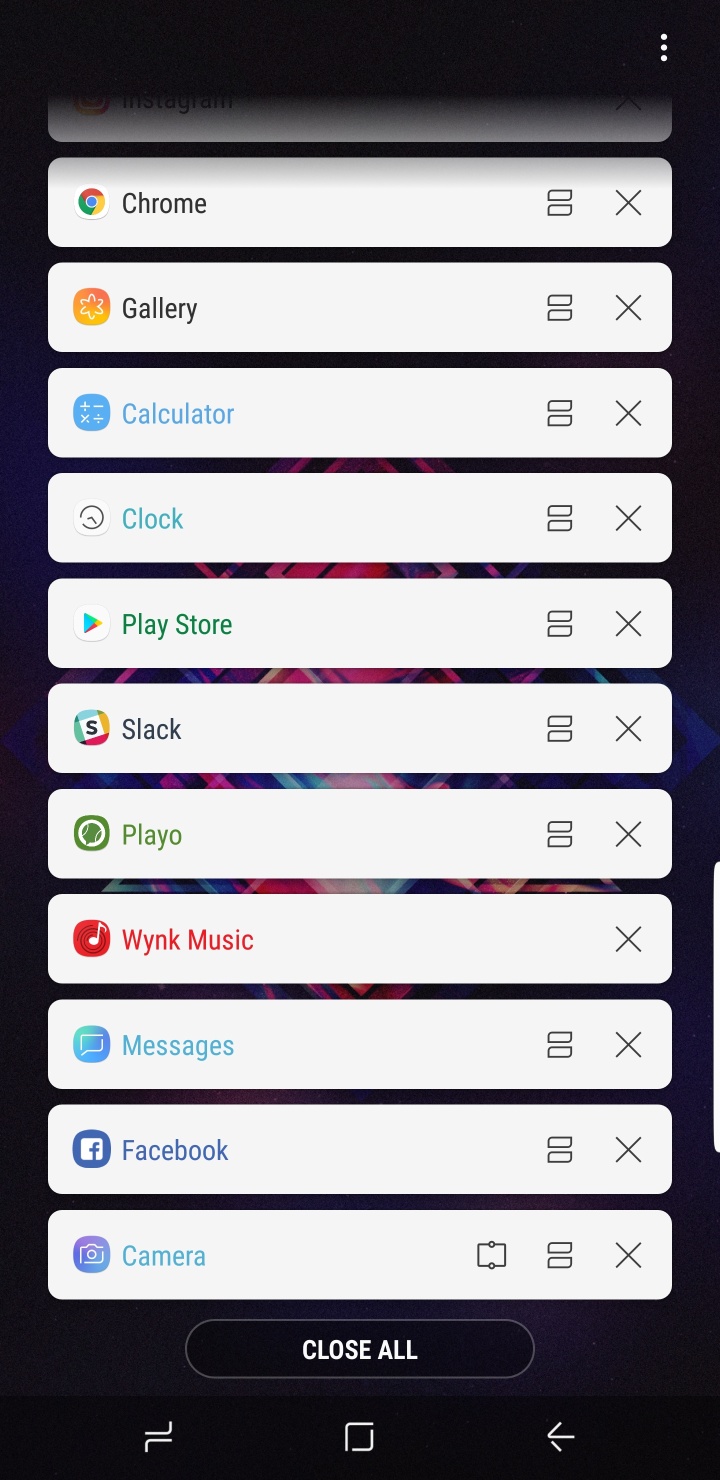
On the company’s iteration of the latest version of Android, you can switch between the standard thumbnail view and a list view that removes all thumbnails and simply shows the names of all recent apps, along with the Multi Window button and the ‘X’ that lets you clear an app from memory. We’re not sure if stock Android allows this, but in any case, it’s a very nice feature for those who tend to look through the Recents screen when switching to an app they may have used a while ago.

How to switch to list view in Recents screen?

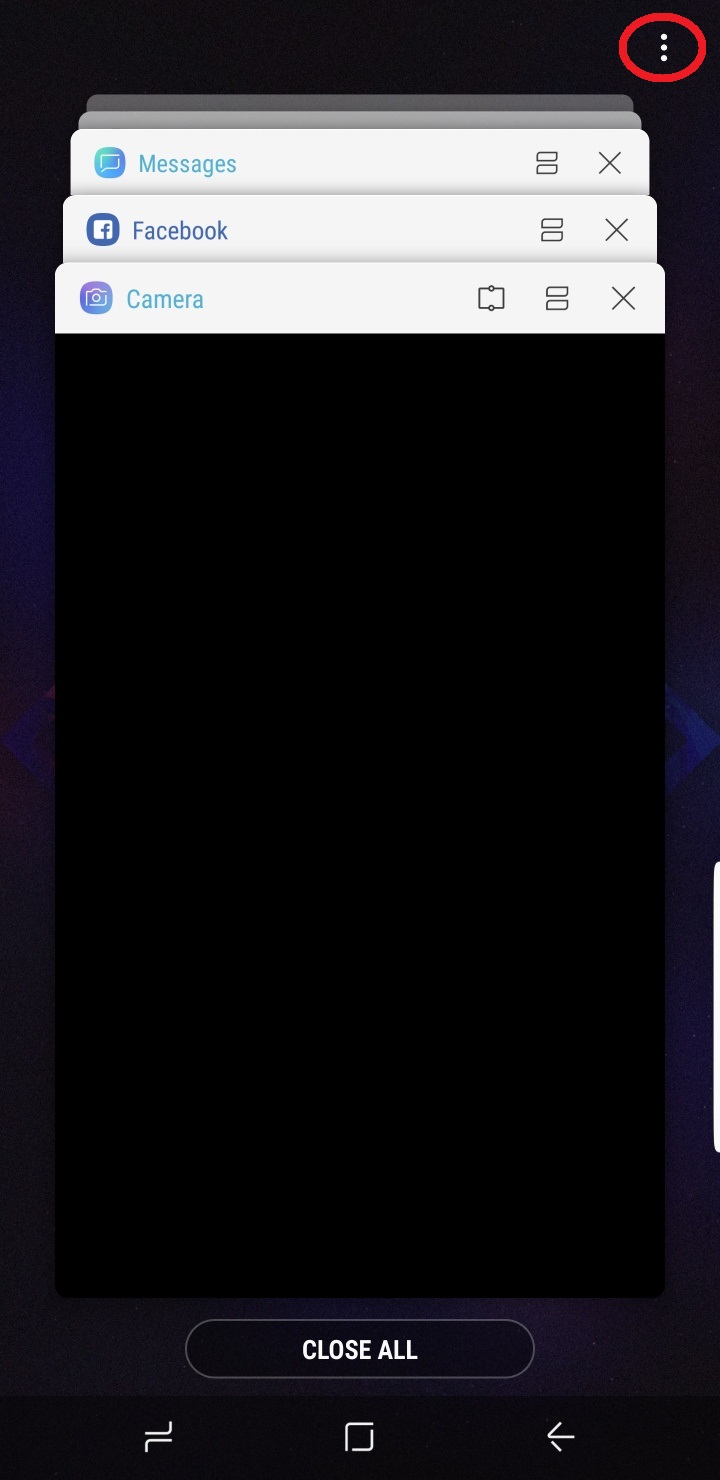
Step 1. First, tap the Recents key (on the left of the home button) to bring up the list of recently used apps.

Step 2: Then, tap the three-dot button on the top-right corner.

Step 3: From the options that show up, select List view.

That’s it. You will now see up to 12 recently used apps at a time, as you saw in the screenshot above. If the list view doesn’t work out for you, you can simply follow the steps above and select Thumbnail view to go back to the standard layout. It goes without saying that even in list view, all the other Recents screen functions work the same way. You can use two apps together by tapping the Multi Window button (the one next to the X button), swipe an app to clear it from the list and from memory (although this isn’t recommended as Android does a good job of managing memory on its own), and use the Close All button to clear all recent apps from memory.

For more on what’s new in Android 8.0 Oreo for Samsung devices, check out this post. Also, see Samsung’s official infographic that highlights the major changes and features in Oreo.

The post What’s New With Android 8.0 Oreo Part 16: Recent apps screen now supports list view appeared first on SamMobile.


from SamMobile http://ift.tt/2GHOYKK
via IFTTT

Introducing our weekly Facebook Live session!

We are incredibly proud of the community that we have built here at SamMobile. Our readers are passionate and vocal about all things Samsung and they really help us drive the conversation forward. The team here at SamMobile strives to put out the best content day in and day out to ensure that our readership doesn’t need to look elsewhere for the only voice of authority on Samsung.

We constantly pursue new and innovative ways of bringing you the content that you love while ensuring that we increase engagement with you and provide you with a platform to amplify your opinions.

Therefore, we are very proud to announce that starting this Wednesday, March 21, we will host a weekly Facebook Live session on our Facebook page. The live session will be conducted every Wednesday by our co-founder Martin Reinders and YouTube Producer Rutger Verstegen.

They’ll discuss the latest Samsung news in the live session and provide their own thoughts on the matter. You’ll be able to ask questions during the live stream which they will be more than happy to answer.

So don’t forget to check out our Facebook Live session every Wednesday at 19:30 PM CET (10:30 AM PST, 13:30 PM EST). Our community on Facebook is over 500,000 people strong, hit the Like button below and join our ranks if you haven’t already!

The post Introducing our weekly Facebook Live session! appeared first on SamMobile.


from SamMobile http://ift.tt/2G5NnR2
via IFTTT

SamMobile Firmware Update Magazine: March 19, 2018

Welcome to the latest edition of our weekly Firmware Magazine. You can think of it as your go-to resource to find out which of your Samsung devices has received a new update or if it’s going to receive a new firmware update in the near future.

To keep things interesting, we present the Firmware Magazine in new designs every week. It will always include the important details about firmware updates such as the firmware versions, device model numbers, Android OS versions and the country where said update is out already.

SamMobile Firmware Update Magazine

Keep in mind, however, that these firmware details are based on the firmware that are available in our database, and in some cases, the latest updates might not show in the same week as the full firmware files take additional time to make it to our database.

The purpose of this magazine is to bring all of that important information about firmware updates to you, the reader, in a manner that’s easy to comprehend—so even if you’re new to the world of firmware, you’ll have no trouble making sense of it all.

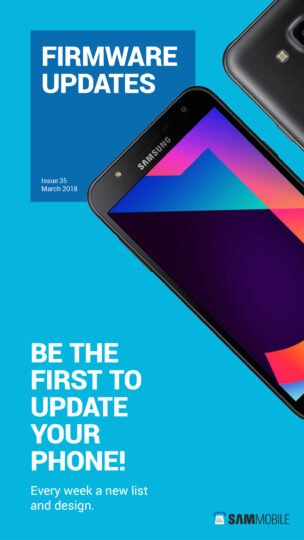
Click on the image below to grab the latest firmware magazine!

The post SamMobile Firmware Update Magazine: March 19, 2018 appeared first on SamMobile.


from SamMobile http://ift.tt/2u24leo
via IFTTT

جميع الحقوق محفوظة لمدونة الغريب 2013